
Appearance
Masking policies
A masking policy specifies which fields Colobus masks and for whom. You manage masking policies on the Colobus Masking Policies tab in the Colobus app. To use the tab, you need the Colobus Admin permission set.
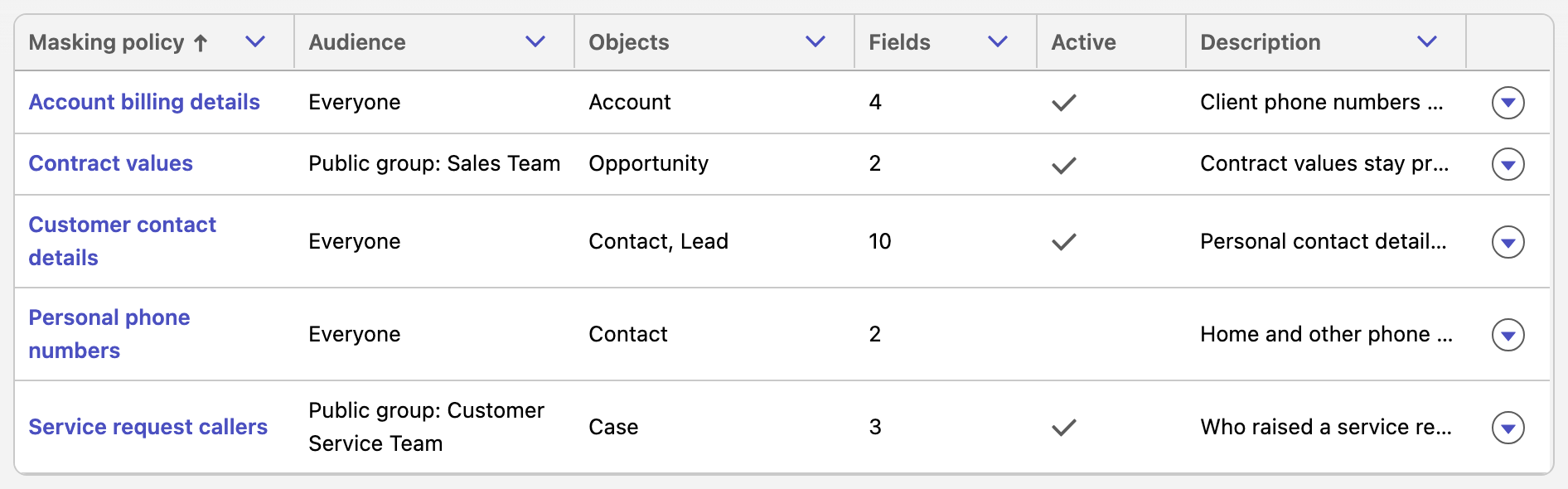
Each masking policy has these parts:
- A Name and a Description, for you and other administrators.
- An Active setting. An inactive masking policy does not mask any fields.
- One Audience, which determines who the masking policy applies to.
- The masked fields. Each field is masked on Record pages, in List views or in both.
Audiences
| Audience | The masking policy applies to |
|---|---|
| Everyone | Every user in the org. |
| Permission set | The users who are assigned one permission set, directly or through a permission set group. |
| Public group | The members of one public group: its users, the users in groups that are nested inside it (up to four levels below it), and the users in its roles. A Role and Subordinates or Role and Internal Subordinates member also includes the users in every role below that role. |
Masking policies are combined. Every active masking policy whose audience includes a person applies to that person, and a field is masked if any of those masking policies masks it. As a result, a new masking policy can add masked fields for a person but cannot remove any. If two masking policies mask the same field, the field is masked in every place that either masking policy specifies.
Creating a masking policy
Click New masking policy.
Enter a Name and, optionally, a Description.
Choose the Audience. If you choose Permission set or Public group, search for the permission set or group, and select it.
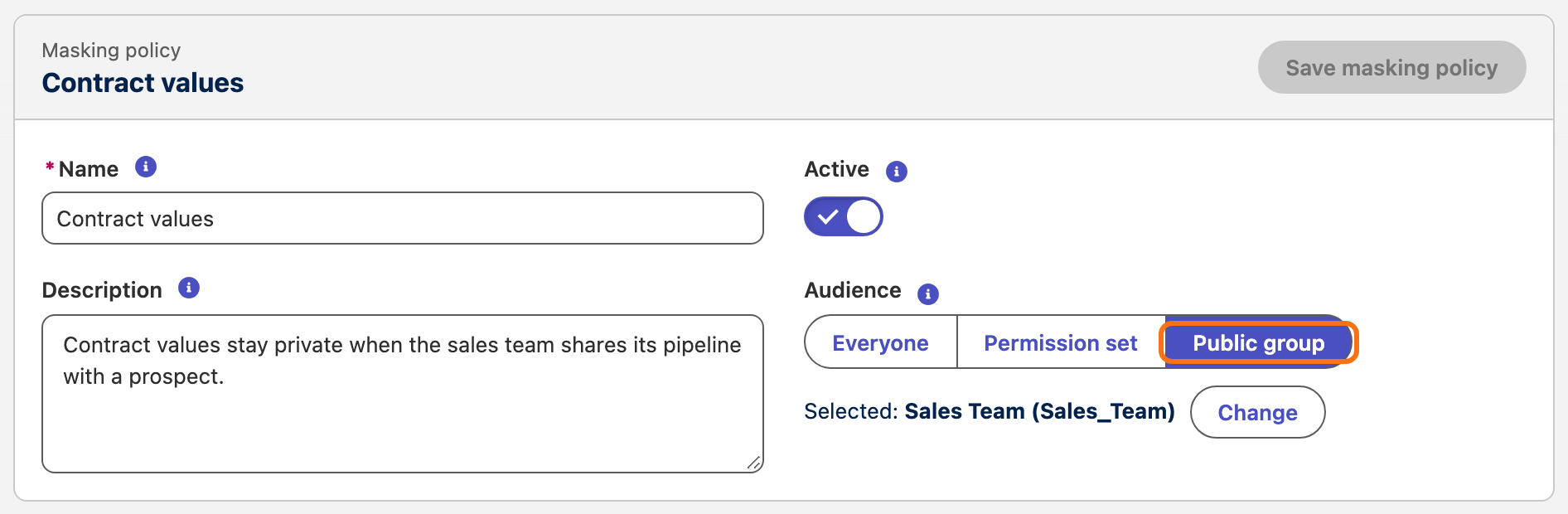
Click Save masking policy.
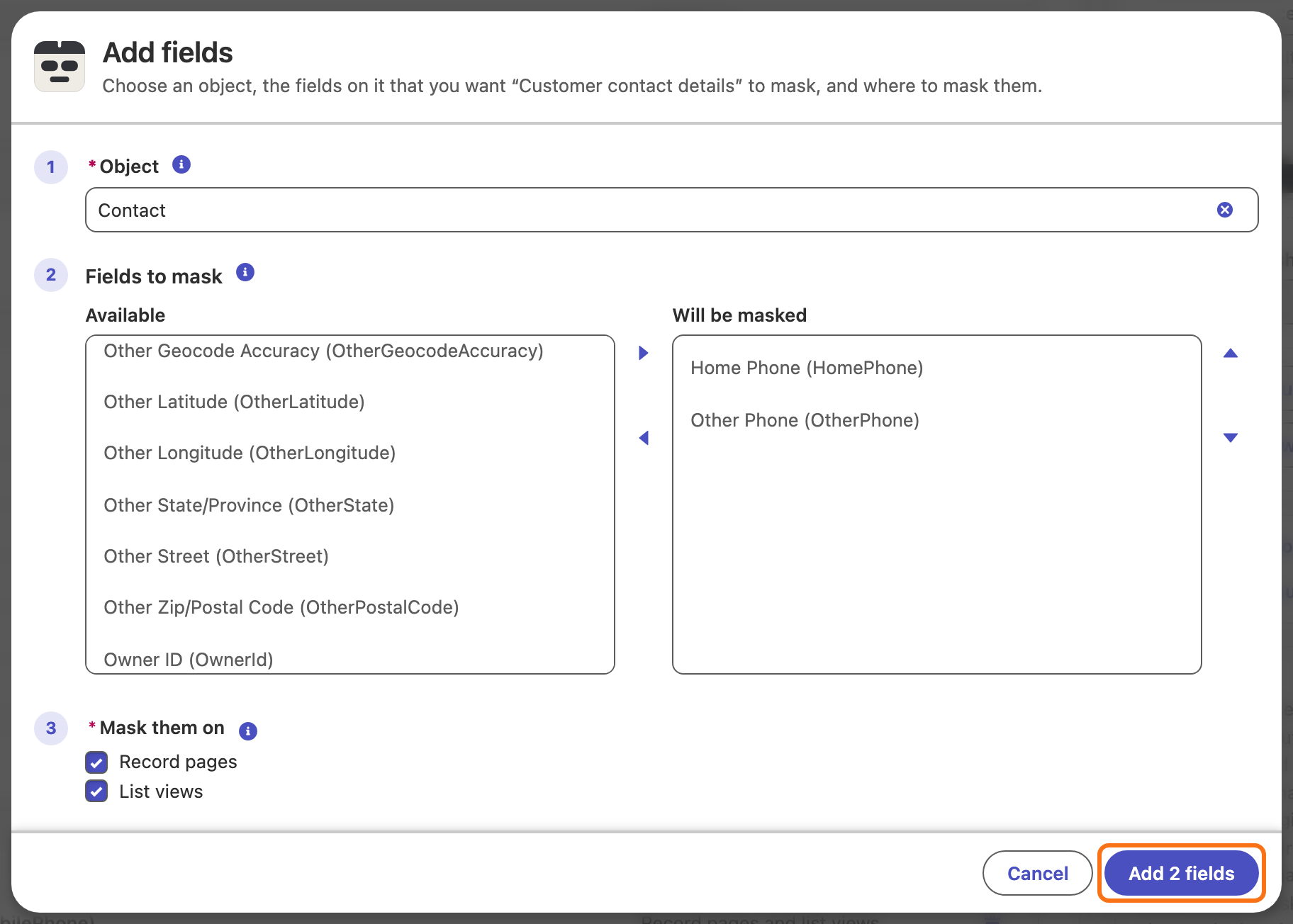
Click Add fields, and then complete these steps:
- In Object, choose the object, such as Contact.
- Move the fields to mask from Available to Will be masked.
- Under Mask them on, select Record pages, List views or both. Record pages include the highlights panel at the top of the page, hover cards, and Edit, New and Clone forms. List views include Recently Viewed, the Intelligence View, Kanban views, related lists and global search results.
- Click the add button. Its label shows how many fields you selected, for example Add 2 fields.
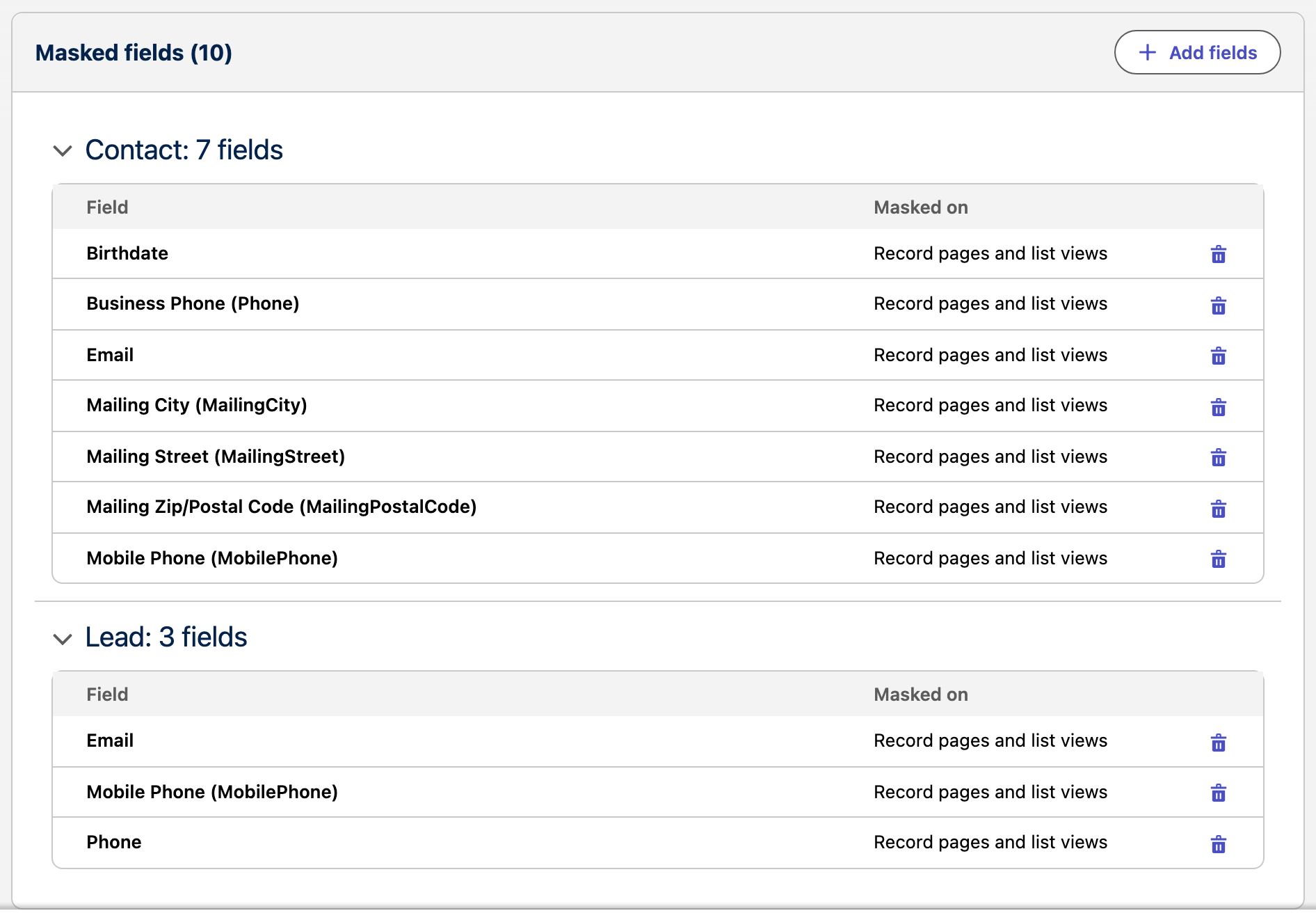
Masked fields lists every field that the masking policy masks, grouped by object. To stop masking a field, click the trash can icon in the field's row, and then click Remove field to confirm.
Address fields
On a record page, Salesforce shows an address (the street, city, postal code and other parts) as one field, such as Mailing Address. If a masking policy masks any part of an address, the whole address is covered on record pages. In list views, each part of the address is a separate column and is masked separately.
Related lists, hover cards and Kanban views
A record page can show other objects' records: a related list, or a hover card that opens when you point to a link. Colobus masks each record by its own object's masking policies. For example, on an account page, the Contacts related list is masked by the masking policies for contacts.
A card in a Kanban view shows values without their labels, so Colobus cannot tell which value is which field. If the masking policies mask any field of the object in list views, Colobus covers every value on the card except the record's name. The totals at the top of a Kanban column are not masked.
Editing, cloning, deactivating or deleting a masking policy
To open a masking policy, click its name. The menu in each row has Edit, Clone, Deactivate (or Activate) and Delete.
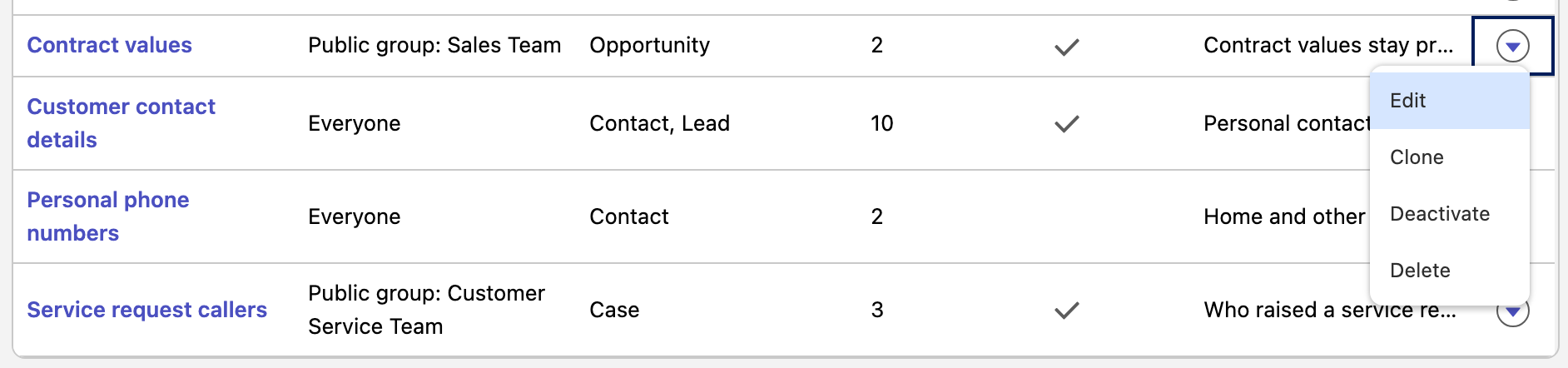
- Clone creates a copy of the masking policy under a new name, with the same description, audience, fields and active setting, so that you can create a variation of it.
- Deactivate keeps the masking policy but stops it from masking fields. Activate turns it back on.
- Delete removes the masking policy and its fields. This action cannot be undone.
To activate, deactivate or delete every masking policy at once, open the menu (three dots) at the right of the toolbar above the list, and choose Activate all, Deactivate all or Delete all.
When changes take effect
While masking is turned on, the extension gets the masking rules again for each org that has a page open, every 15 minutes by default. You can change this interval with Extension refresh interval (minutes) in Org-wide settings. The extension also gets the latest masking rules when a person turns masking on. In an org where Masking always on is selected, the extension gets them on this schedule whether or not the person has turned masking on. When you save a change, Colobus says when users' extensions apply it. While masking is enabled, a note in Colobus org-wide settings also says how to see the change in your own browser right away. You can click Refresh for the org on the extension's options page. Unless Masking always on is selected, you can also turn masking off and on.
When an object, field or audience is deleted
If an object, field, permission set or public group that a masking policy refers to is deleted, or its API name is changed, Colobus shows a warning:
- If the permission set or public group of the audience is missing, the masking policy list shows the audience with (not found) and a warning icon. The masking policy does not apply to anyone until you choose another audience.
- If an object is missing, the masking policy list shows the object with (not found). The rest of the masking policy continues to mask fields.
- If a field is missing, the masking policy shows the field with a Not found badge when you open the masking policy. The rest of the masking policy continues to mask fields.
The masking preview also lists these items while Colobus masking is enabled. It lists each active masking policy whose audience no longer exists, and the missing objects and fields in the active masking policies that apply to the user you choose. For more information, see Org-wide settings. Correct or remove the reference when you can.
Fields that are shown under another label
Some standard fields are shown on the page under a different label from the one in Setup. For example, a contact's Business Phone field is shown as Phone. Colobus recognizes the common cases and masks these fields under either label.