
Appearance
Using the extension
This page is for everyone who masks their screen with Colobus. Your Salesforce administrator decides which fields are masked, and you decide when masking is on, unless your administrator sets masking to always on in an org.
Turning masking on and off
Click the Colobus button in your browser's toolbar, and use the Masking switch. While masking is on, the Colobus button shows the Colobus logo. While masking is off, the logo is faded and crossed out.
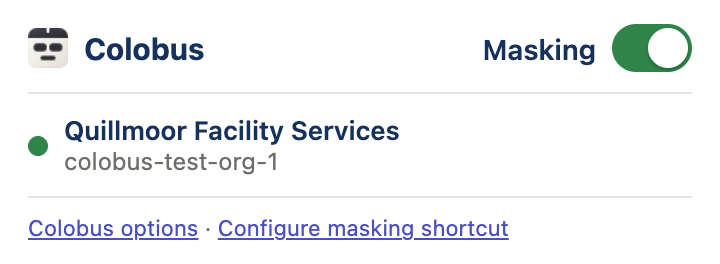
- You can also turn masking on or off with the keyboard shortcut Alt+Shift+M (Control+Shift+M on a Mac). If another extension already uses this shortcut, the browser does not assign it to Colobus. In that case, set your own shortcut at
chrome://extensions/shortcuts(edge://extensions/shortcutsin Edge), or click Configure masking shortcut in the popup. - One switch controls masking in every Salesforce org that you open, except an org whose administrator sets masking to always on. The switch keeps its setting when you restart the browser.
- Turn masking on before you share your screen. Values are covered as soon as masking is on, and they remain covered as you move between pages in Salesforce.
When you are on a Salesforce page, the popup also shows that org's name, its My Domain name below it, and a colored dot. If the org needs your attention, the popup says why, and offers Check again where that helps.
| Dot color | Meaning |
|---|---|
| Green | Colobus is working in this org. |
| Amber | The org needs your attention. Your administrator may have disabled masking for the org, Colobus may not be set up for you in the org, or Colobus could not get the latest masking rules, for example because you need to log in to the org again. If Colobus could not get the latest masking rules, it masks with the masking rules it saved earlier. The popup describes the situation. |
| Red | Colobus could not connect to the org and has no saved masking rules for it. The popup describes the situation. |
| Gray | Colobus is checking the org. |
If your administrator sets masking to always on
Your Salesforce administrator can set masking to always on in an org. You then cannot turn masking off in that org. On its pages, the popup's Masking switch is on and cannot be changed, and under the switch the popup says Your Salesforce administrator has set masking to always on in this org. The keyboard shortcut does nothing on that org's pages. The Colobus button shows the Colobus logo there, and the label in the corner, if it is shown, says Colobus masking. In your other orgs, the switch and the keyboard shortcut turn masking on and off as usual.
In an org where masking is always on, you can still copy or show a masked value from its menu, and show every masked value on the page for 10 seconds from the label. For more information, see Working with a masked value.
Masking on Salesforce pages
While masking is on, the fields in your masking policies are covered on record pages, in hover cards, in Edit, New and Clone forms, in list views, in related lists and in global search results.
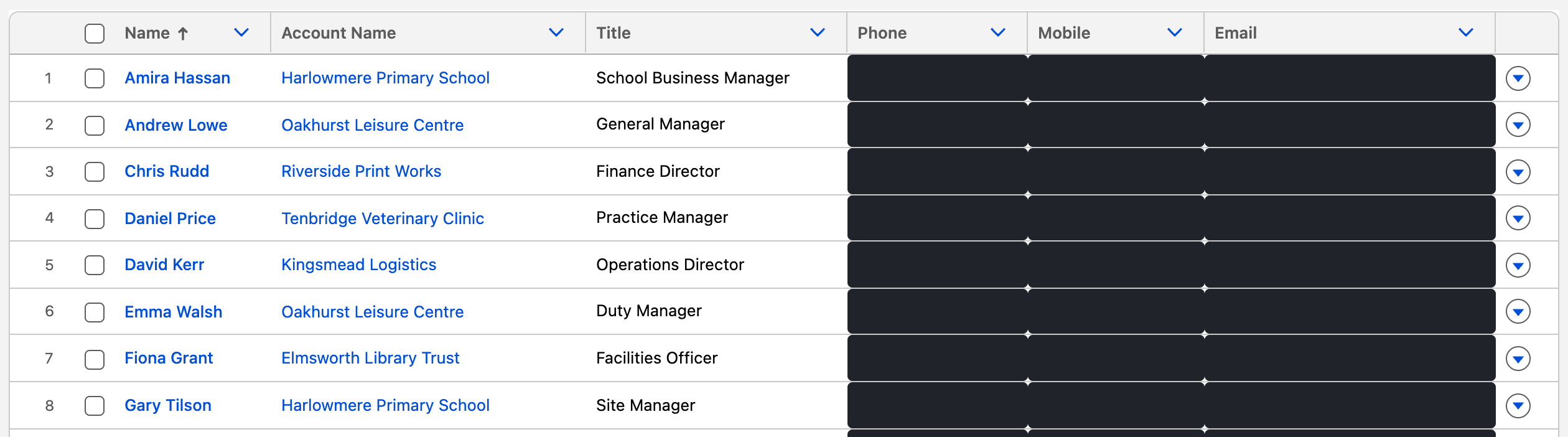
A small label in the bottom-right corner of Salesforce pages (except Setup pages) shows whether masking is working:
| Label | Meaning | What to do |
|---|---|---|
| Colobus masking | Masking is working on this page. | No action is needed. |
| Colobus masking is loading | Colobus is getting the masking rules for this org for the first time. Values on the page are not covered until the masking rules arrive. | Wait until the label changes to Colobus masking before you share the page. |
| Colobus masking is disabled | Your administrator has disabled masking for the org. | Contact your administrator. |
| Colobus masking is not available in this org | Colobus cannot mask values in this org. Colobus may not be installed, you may not have a Colobus permission set, you may need to log in to Salesforce again, or Colobus could not connect to the org. | Open the popup and follow its instructions. For example, log in again and click Check again. If the label remains, contact your administrator. |
While the label says Colobus masking and the page has masked values, click it to open a menu for every masked value on the page:
- Show all for 10 seconds shows every value that is masked on the page, and then hides them again. Values that appear on the page during those 10 seconds stay masked.
- Mask shown values again hides every value that you chose to show, at once.
When the label shows a warning, clicks pass through it to the page underneath. If the label is in the way, you can set it to appear only when masking is not working. For more information, see Options.
Working with a masked value
To work with one masked value without turning masking off, click it, or move to it with the Tab key and press Enter. A menu opens with these choices:
- Copy copies the value, so that you can paste it somewhere else. The value stays hidden on the screen.
- Show for 10 seconds shows the value for 10 seconds and then hides it again. If you are editing the value, it stays visible until you move to another field.
- Show until I leave this page shows the value until you open another page.
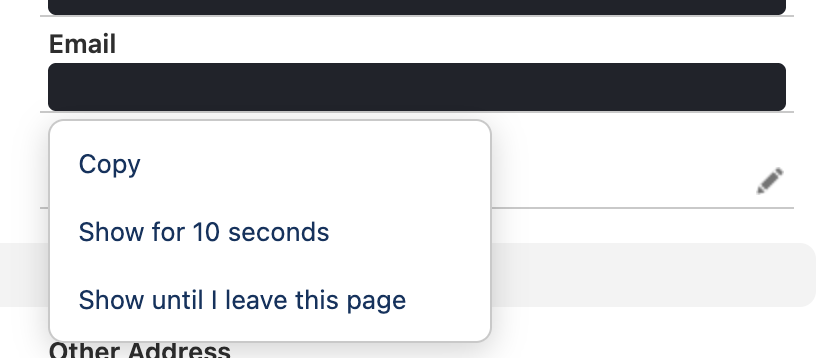
While a value is masked, clicking it opens this menu instead of the value's own link, so you cannot start an email, a call or an inline edit from a masked value by mistake.
A value that is shown has a dashed outline, so that you can see which values are visible, and a small button with a down arrow on the outline's top-right corner. Click the button to open a menu for that value:
- Mask again hides the value.
- Copy copies the value.
- Show until I leave this page, for a value that is shown for 10 seconds, keeps it visible until you open another page.
To open this menu with the keyboard, move to the shown value, for example to its link, and press Shift+F10 or the Menu key. Clicking the value itself, or pressing Enter on it, works as usual: you can follow its link or edit it. When you open another page, every shown value is hidden again. Anyone who can see your screen can see a value that is shown, so check who is watching before you show one.
If the page is covered
If Colobus is updated, disabled or removed while a Salesforce page is open, the masks that are already on the page remain, but Colobus cannot mask anything new on that page. While masking is on, the next time the page needs new masking, for example when you move to another record or list, Colobus covers the whole page and shows this message: "Colobus was updated, disabled or removed while this page was open, so it cannot check which values to hide on this page. The page remains covered until you reload it."

Click Reload page. If Colobus was updated, it masks the reloaded page as usual. If Colobus was disabled or removed, the page is shown without masking.
Options
To open the options page, right-click the Colobus button and choose Options, or click Colobus options in the popup.
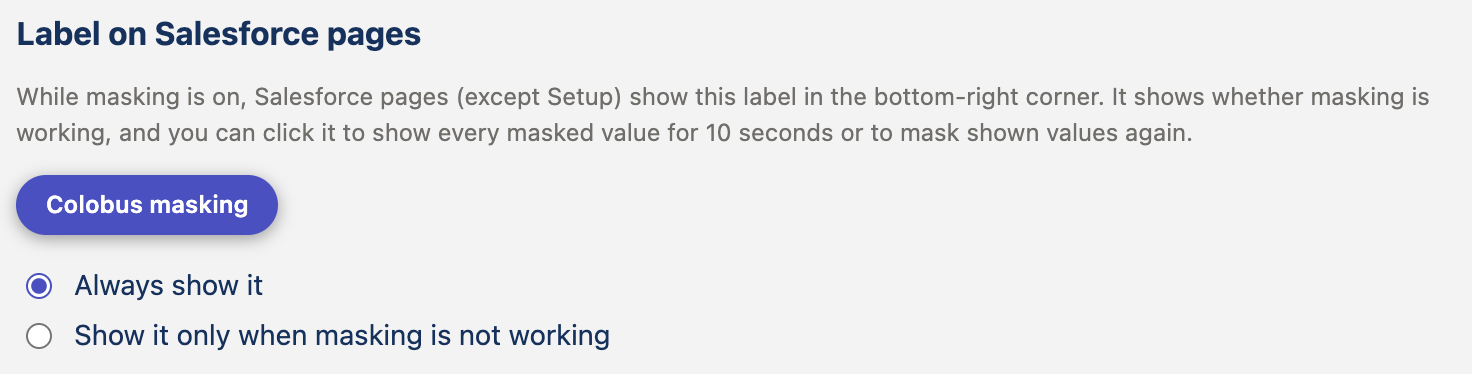
Label on Salesforce pages, at the top of the options page, has two options: Always show it and Show it only when masking is not working. The second option hides only the Colobus masking label, so its menu is not available either. The other labels are always shown, because they mean that values may not be covered.
Your orgs lists every org that Colobus has found, in two groups:
- Colobus is set up for you in these orgs. For each org, the page shows its name, its My Domain name, its status, such as Ready, 12 fields masked, and when its masking rules were last refreshed. If your administrator sets masking to always on in the org, the page also says Your Salesforce administrator has set masking to always on in this org. To get the latest masking rules now, for example right after your administrator changes a masking policy, click Refresh. In an org without masking always on, you can also turn masking off and on. If the status is Log in to this org again to refresh its masking rules, your Salesforce login for that org has usually ended, and Colobus continues to mask with the masking rules it saved. The popup says the same for that org. Log in to the org again, and then click Check again.
- Colobus is not set up for you in these orgs. Colobus has never received masking rules from these orgs. Colobus may not be installed, you may not have a Colobus permission set, you may not have been logged in when Colobus checked the org, or Colobus could not reach the org. If you need Colobus in one of these orgs, contact your administrator.
To remove an org from the list, click Remove. Colobus deletes the masking rules that it saved for the org, and adds the org back the next time you open it.
At the bottom of the options page, Help: links to Colobus documentation and Using the extension on this help site.
Limitations
- Masks remain in place while you edit a field, inline or in an Edit form, so you cannot see the value that you are editing. To edit a masked field, click the mask and choose Show until I leave this page, or turn masking off (unless your administrator sets masking to always on in the org).
- Colobus does not mask reports, dashboards, the activity timeline, Chatter, email, the suggestions under the search box, the totals at the top of a Kanban column, Setup pages or the title of the browser tab. For more information, see What it covers.