
Appearance
Org-wide settings
The Colobus org-wide settings panel, on the right side of the Colobus Masking Policies tab, contains settings that apply to everyone in the org. The panel shows the current values. To change them, click Edit at the top of the panel, and then click Save or Cancel. To save the settings, you need the Colobus Admin permission set.
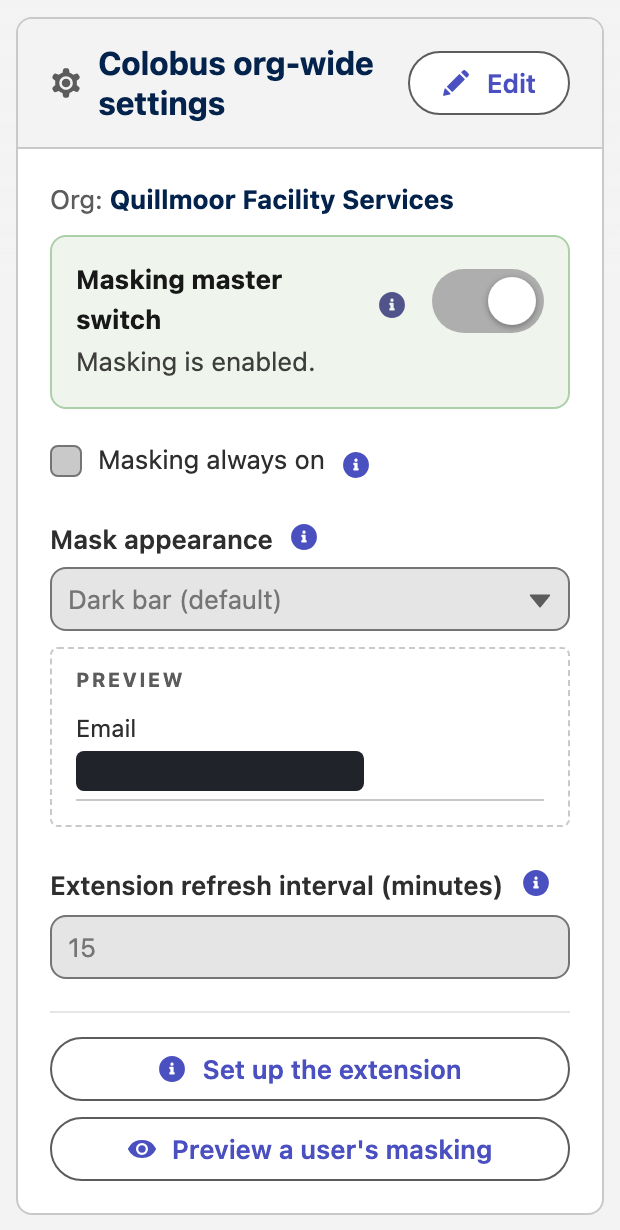
Masking master switch
The Masking master switch enables or disables Colobus masking for the whole org. The panel shows your org's name above the switch, so that you can confirm which org you are changing. The box around the switch is green when masking is enabled and amber when it is disabled. Until you click Edit, the switch itself is gray, with its knob on the side of the saved state. The line beside it says Masking is enabled or Masking is disabled. If you change the switch while you edit the settings, the line says Saving enables masking or Saving disables masking.
- When masking is enabled, each person can turn masking on in their own extension.
- When masking is disabled, Colobus does not mask any fields for anyone in the org, even for people who turn masking on in the extension. Their Salesforce pages show the label Colobus masking is disabled, and the extension's popup says Your Salesforce administrator has disabled masking for this org.
When you disable masking and save, Colobus asks you to confirm. People's extensions apply a change to the switch within the time that is set in Extension refresh interval (minutes).
Masking always on
When Masking always on is selected, people cannot turn masking off in the org. On the org's pages, the Masking switch in the extension's popup stays on and cannot be changed, and the keyboard shortcut does nothing there. This applies to administrators too. The setting is not selected by default.
While masking is always on:
- Under the switch, the extension's popup says Your Salesforce administrator has set masking to always on in this org. In other orgs, the switch turns masking on and off as usual.
- People can still copy or show one masked value from its menu, and show every masked value on a page for 10 seconds from the Colobus masking label. For more information, see Using the extension.
- If masking is disabled with the Masking master switch, Colobus does not mask any fields, whether or not this setting is selected.
People's extensions apply a change to this setting within the time that is set in Extension refresh interval (minutes). When you select the setting, for a person whose masking is off, it takes effect on the first page they open in the org after that time, and values on that page can be visible until the change arrives.
This setting does not stop people from turning off or removing the extension, or from opening the org in a browser that does not have the extension.
Mask appearance
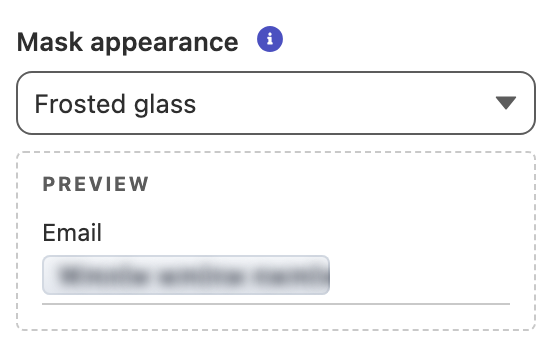
This setting determines how masked values look on everyone's screen. The preview below the setting shows your choice before you save it.
| Option | How a masked value looks |
|---|---|
| Dark bar (default) | A dark gray bar covers the value. |
| Frosted glass | A pane of frosted glass covers the value. The blurred text on the glass is the same placeholder for every field, so nothing on it comes from the value. |
| Last 4 characters shown | Six dots, followed by the last characters of the value, for example ••••••0011 for a phone number. At least half of each value, and at least three characters, stay hidden, and at most four characters are shown. |
| Light gray bar | A light gray bar with a visible edge covers the value. |
| Pinstripe bar | A dark bar with diagonal stripes covers the value. |
Every option except Last 4 characters shown covers the value completely. With Last 4 characters shown, a value of three characters or fewer, or an empty field, shows only the dots, and the number of dots is always six, so the length of a value is not shown. The last characters of every masked field are shown, including dates, addresses and email addresses, so choose this option only if that is acceptable for every field in your masking policies.
A white bar is not offered, because it could look like an empty field, and a presenter could forget that masking is on.
Extension refresh interval (minutes)
This setting is how often each person's browser extension gets the latest masking policies and settings from the org, which is how long it uses its saved copy before it asks the org again (its cache TTL). The default is 15 minutes, and the minimum is 1 minute. While masking is on, changes to masking policies and settings reach people's extensions within this time. In an org where Masking always on is selected, the extension gets them on this schedule whether or not the person has turned masking on. The extension also gets the latest masking rules when a person turns masking on.
When you save a change while masking is enabled, Colobus says when people's extensions apply it, and a note appears where Save was. The note says how to see the change in your own browser right away, and stays until you click Edit or reload the page. You can click Refresh for the org on the extension's options page. Unless Masking always on is selected, you can also turn masking off and on. Changes to masking policies show the same note.
Most organizations can keep the default. A shorter interval brings changes to people sooner, and asks the org for the masking rules more often.
Set up the extension
To open the setup checklist, click Set up the extension at the bottom of the panel. The checklist lists the steps that each user needs before masking policies take effect for them: installing the Colobus browser extension, with links to the Chrome Web Store and Microsoft Edge Add-ons, and being assigned the Colobus User permission set. Select each step when it is done. Your selections are saved for you. Until both steps are selected, a banner at the top of the tab says that masking policies take effect only for users who have installed the Colobus browser extension, and links to the setup checklist.
Preview a user's masking
To open the masking preview, click Preview a user's masking at the bottom of the panel. The masking preview shows which fields a person's extension masks, exactly as the extension receives them. It is also available while you edit the settings.
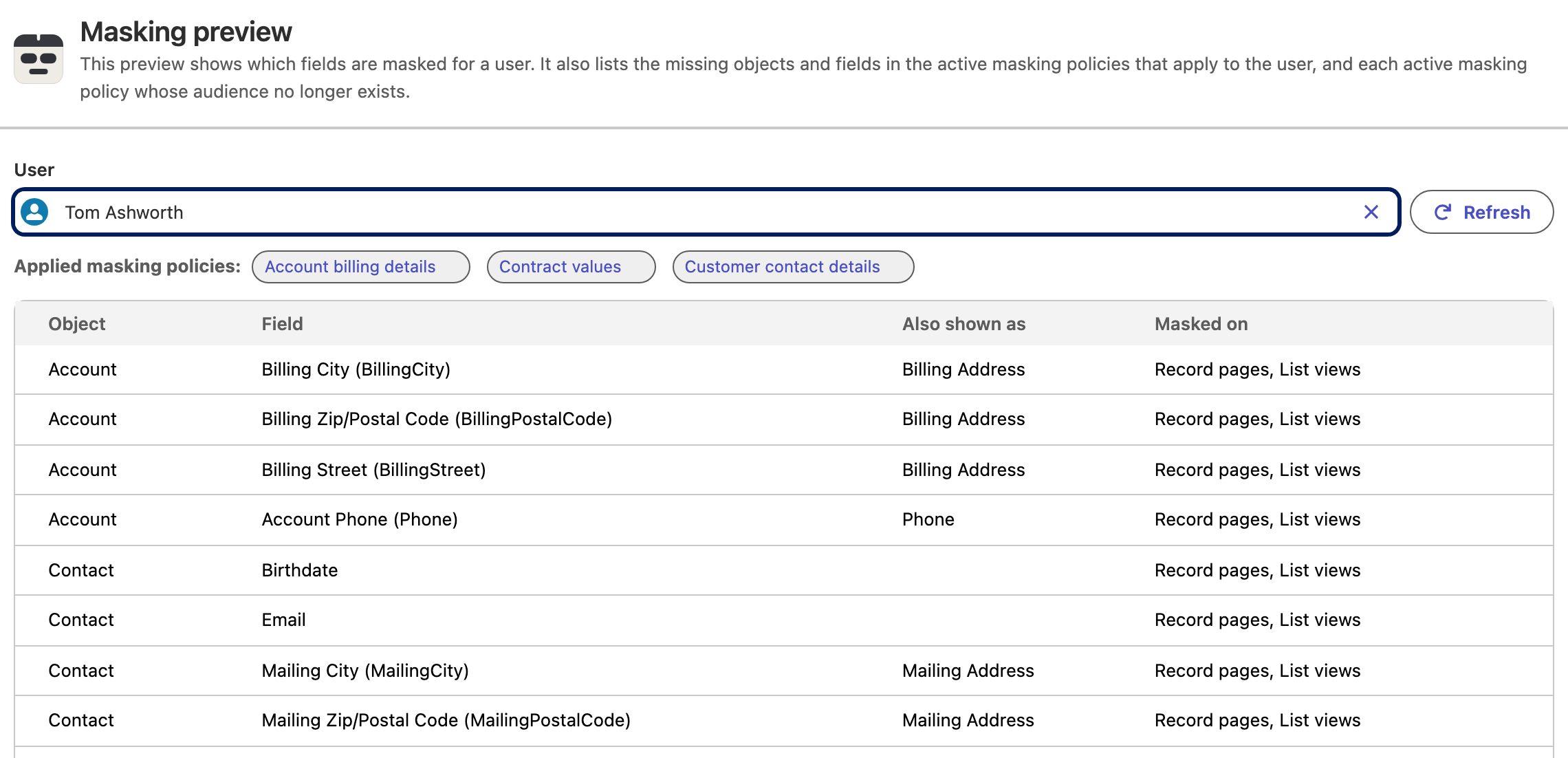
- User is the person whose masking you see. It starts with you. You can search for someone else, or clear the field to see your own masking again. To load the masking preview again, click Refresh.
- Missing objects, fields and audiences lists each active masking policy whose audience (a permission set or a public group) no longer exists, and each missing object or field in the active masking policies that apply to the person. Inactive masking policies are not checked, and nothing is listed while Colobus masking is disabled.
- Applied masking policies lists the masking policies that apply to the person. To open one, click its name.
- The table lists every field that is masked for the person: the object, the field, any other label that the page shows it under (Also shown as), and where it is masked (Masked on).
- If Colobus masking is disabled, the masking preview says so, and the person's extension does not mask any fields.
Help and support
Below the panel, you can click Documentation to open this help site in a new browser tab, or click Contact us: support@turbotres.io to start an email to Colobus support. Below these links, a note explains that Colobus masks selected fields on screen and is not a substitute for Salesforce field-level security and sharing.
Where the settings are stored
The org-wide settings are stored in a protected Colobus object. They do not appear in Setup, in reports or through the API, so you can change them only in this panel.