
Appearance
Configure Presently
Configure is where an admin sets Presently up for the whole org. Open the Presently home tab and click Configure. Only users with Presently Admin (or the Manage Presently Settings custom permission) see it.
Configure has three tabs.
Categories and target
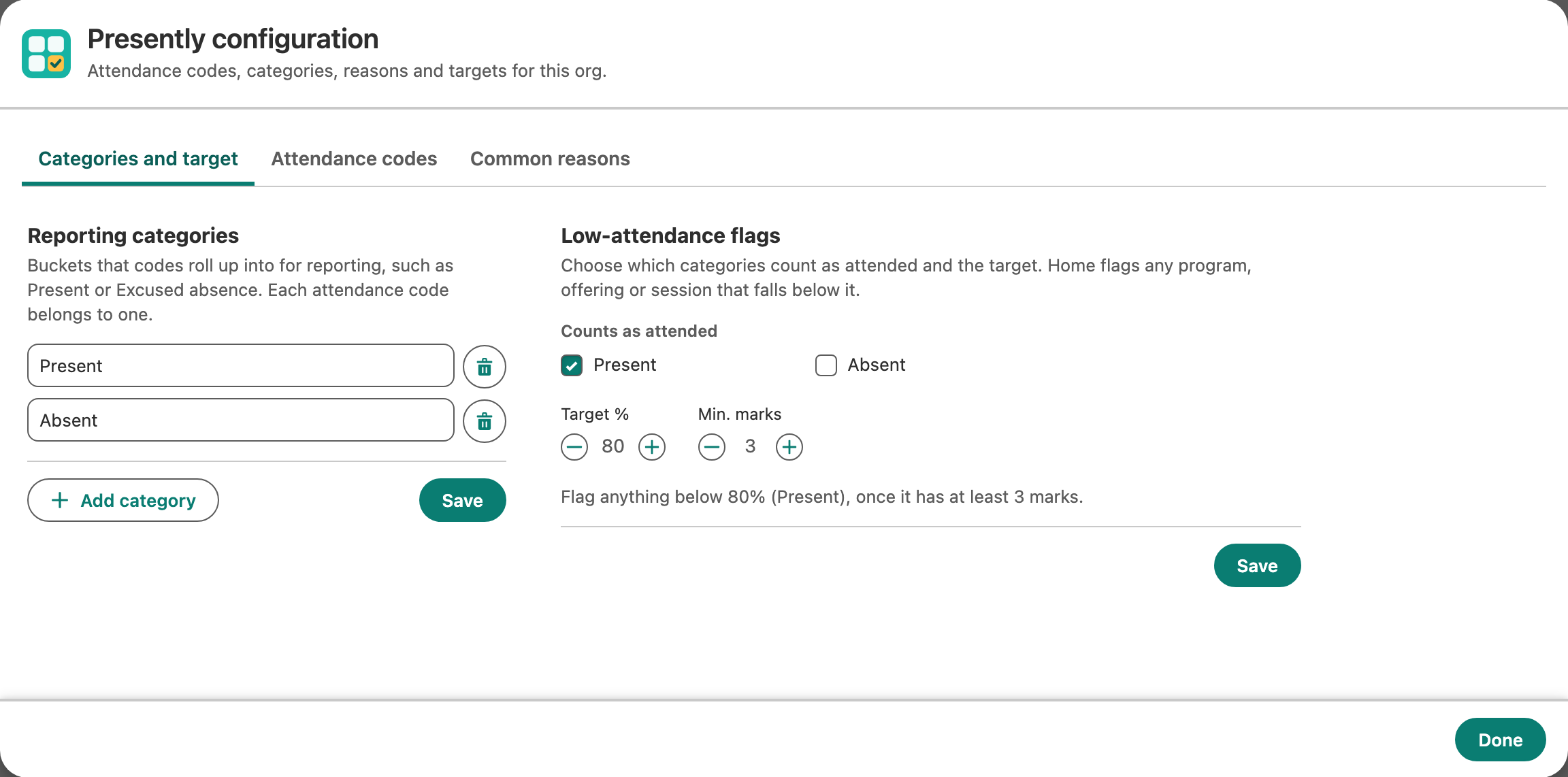
Reporting categories
Categories group your codes for reporting. For example, Present and Late might both belong to a "Present" category, and Absent and Excused to "Absent". The Home page can show attendance by code or by category.
- Click Add category, type a name, then Save.
- Remove one with its delete button, then Save.
- Then give each attendance code a category on the Attendance codes tab.
If you rename or remove a category that codes still use, Presently saves the change and tells you how many codes still use the old name. Those codes keep the old name, which still shows on the Home page and in reports, until you change them. The attendance target ignores names that no longer match.
Low-attendance flags
The attendance target decides when Presently flags something as low.
- Counts as attended: tick the categories that count as being there (usually Present).
- Target %: anything below this rate is flagged.
- Min. marks: a program, offering, session or person is only flagged once it has at least this many marks, so one absence on day one doesn't raise a flag.
- Click Save.
The sentence under the settings says exactly what will be flagged. Flagging is off until you tick at least one category, and until then Presently shows how much is marked instead of attendance rates.
Attendance codes
The codes staff choose from when marking, such as P for Present.
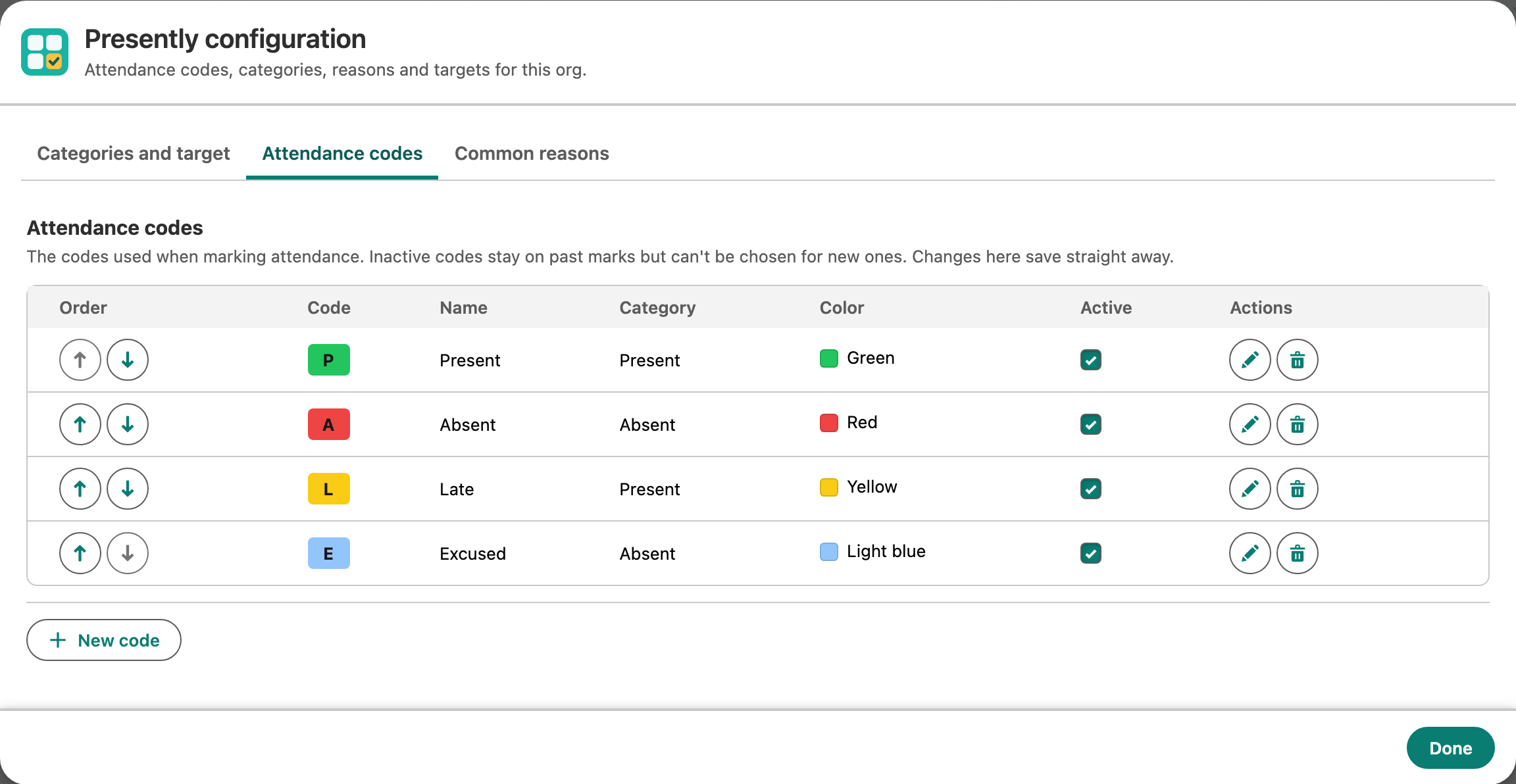
- Create starter codes appears when you have no codes. It adds Present (Green), Absent (Red) and Late (Yellow).
- New code adds one. Each code has a name, a short code (shown on the sheet), a meaning, a colour and a category.
- The edit and delete buttons on each row change or remove a code.
- The up and down arrows set the order. On the attendance sheet, tapping a person's code steps through the codes in this order.
- Active: untick to retire a code. It stays on past marks but can't be chosen for new ones.
A code that has been used can't be deleted. Untick Active instead.
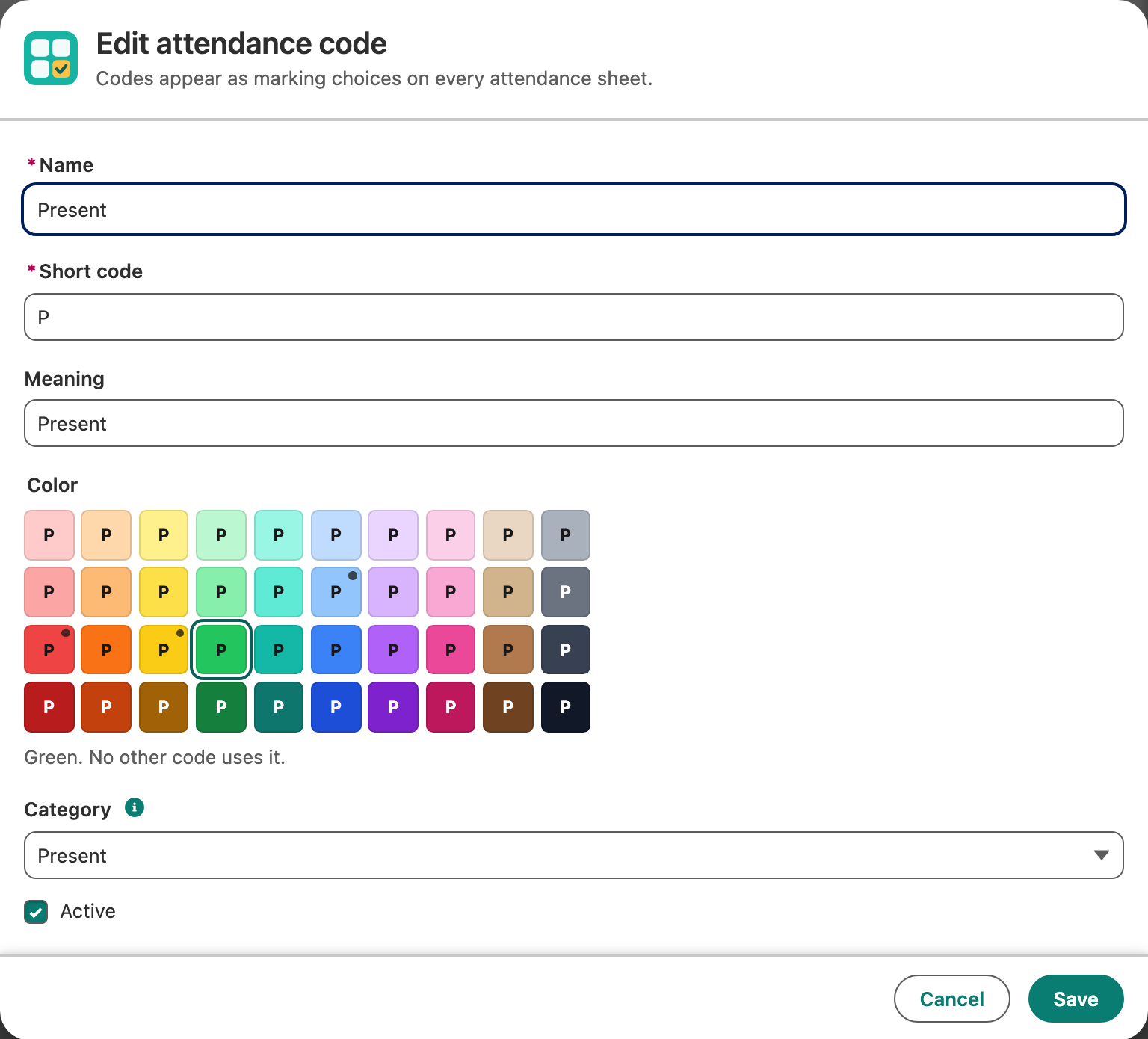
Choosing a colour
There are 40 colours: ten families (red, orange, yellow, green, teal, blue, purple, pink, brown and grey), each in four shades from pale to dark. In the code's dialog, each column of the grid is a family, palest at the top, and every square shows the code's letter as the sheet will.
- Click a colour, or move with the arrow keys. The line under the grid names it, such as Red.
- A small dot marks a colour another code already uses, and the line under the grid says which codes. Two codes can share a colour, but staff tell codes apart more easily when they don't.
- On the darker shades the letter is white, so it stays easy to read.
The colour is saved as a hex value, such as #EF4444 for Red, in the code's Color field. If you load codes with Data Loader, put a hex value there; one that isn't in the grid still works and shows as Custom colour.
Changes on this tab save straight away.
Common reasons
Reasons offered in the Reason box while marking, such as Sick, Holiday or Transport.
- Click Add reason, type it, then Save.
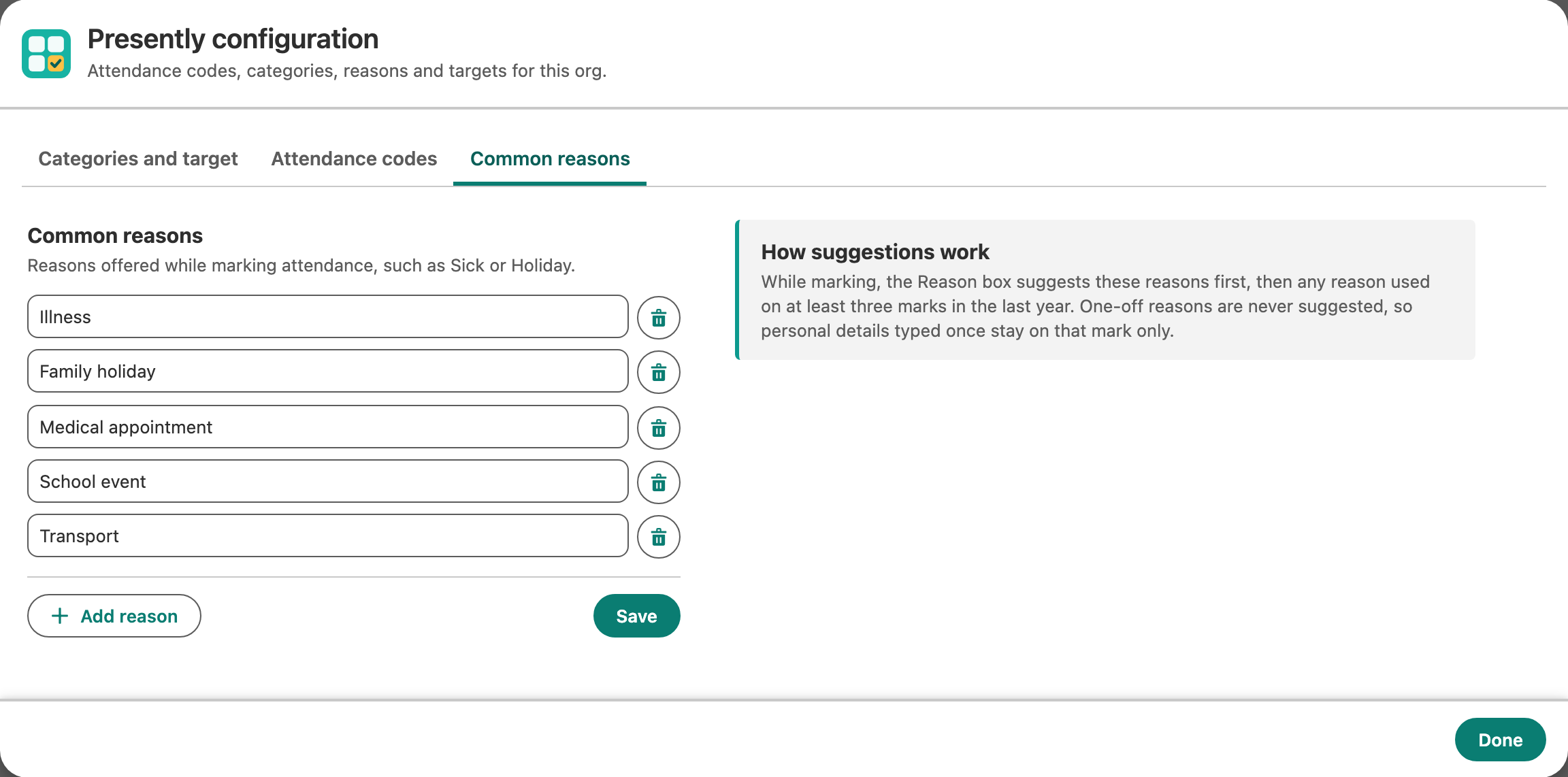
While marking, Presently suggests these reasons first, then any reason your team has used on at least three marks in the last year. One-off reasons are never suggested, so personal details typed once stay on that mark only.
Personal display settings
Each person's own display choices, such as columns, rows per page and name format on the attendance sheet, are saved for them automatically. They are not part of Configure.