
Appearance
The Home page
The Presently tab is Presently's home page. It shows how attendance is going and what needs doing.
Analytics
Programs overview
Starts with all active programs and drills down: click a program to see its offerings, an offering to see its sessions, and a session to see its own figures, with Open to mark to go to its sheet (Open session if you can only look). The breadcrumb at the top takes you back up. Inside a program, Active only shows just its Planned and Running offerings.
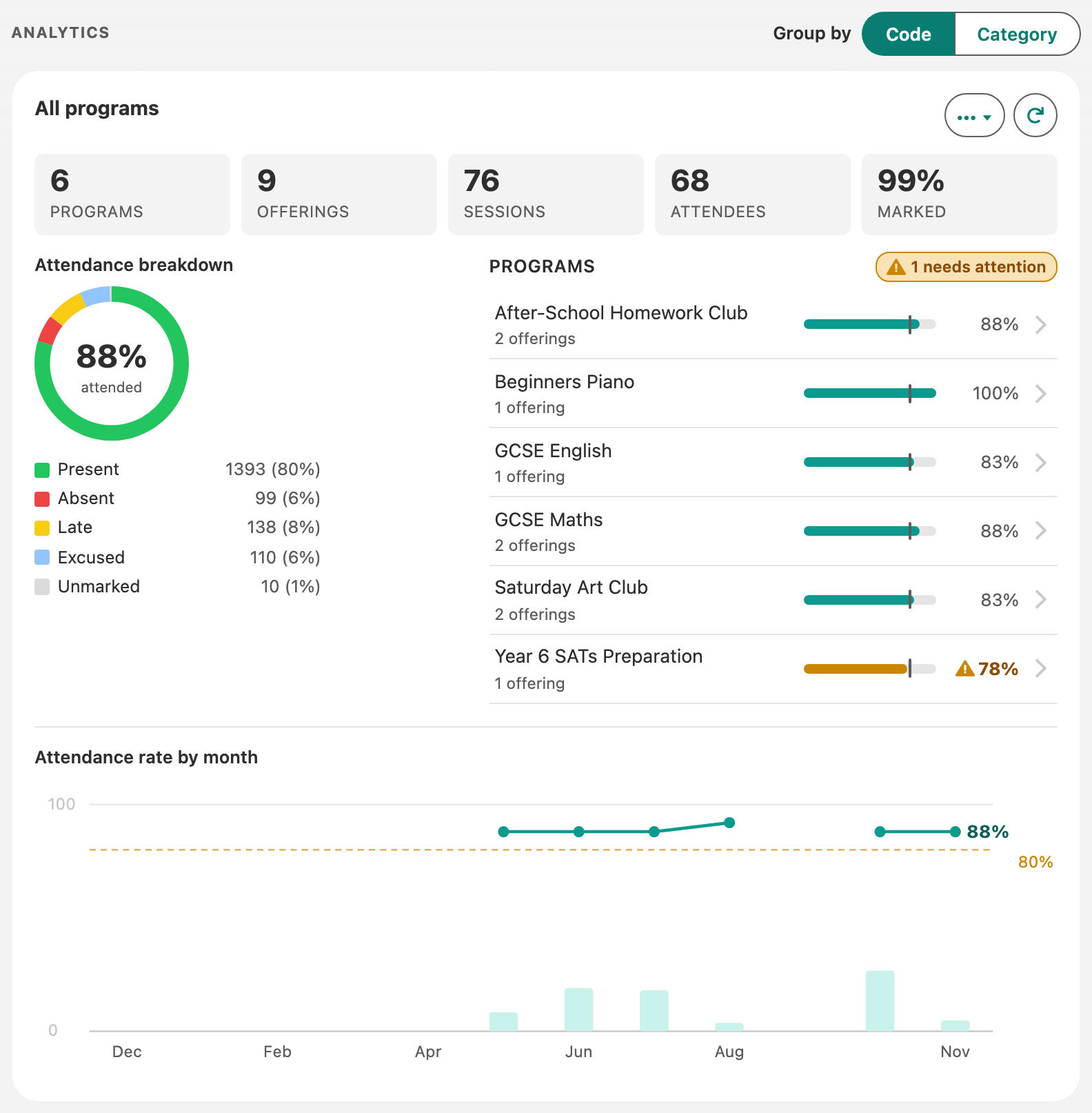
At each level you see:
- Totals, such as programs, offerings, sessions, attendees and how much is marked.
- Attendance breakdown: a chart of marks by code or category. The middle shows the attendance rate (how many of the marked were there), or, until an admin chooses which categories count as attended, how much is marked.
- A list of the next level down with each one's rate. Anything below your attendance target is flagged, and the heading says how many need attention. Rates appear once an admin has chosen which categories count as attended, and once there are enough marks.
- Attendance rate by month (by session, inside an offering): the trend, with your target as a dashed line.
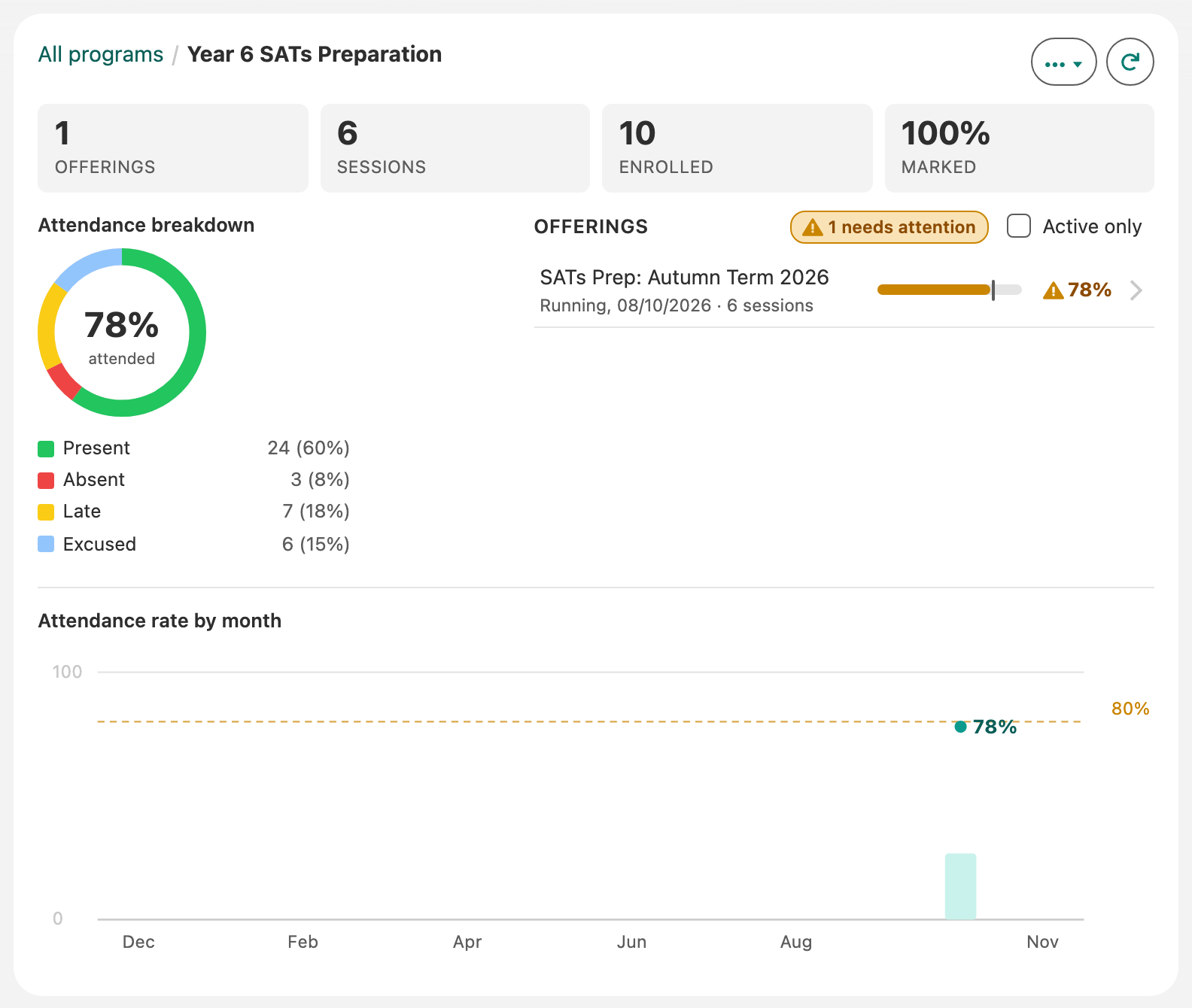
Group by at the top switches between codes and reporting categories. The ... menu shows or hides charts, and Refresh reloads the figures.
Attendee lookup
Search for a person by name or email (people enrolled on any offering) to see their attendance: their rate (in the middle of their chart, flagged if below your target), recent marks and any run of absences. It has the same ... and Refresh buttons as the Programs overview.
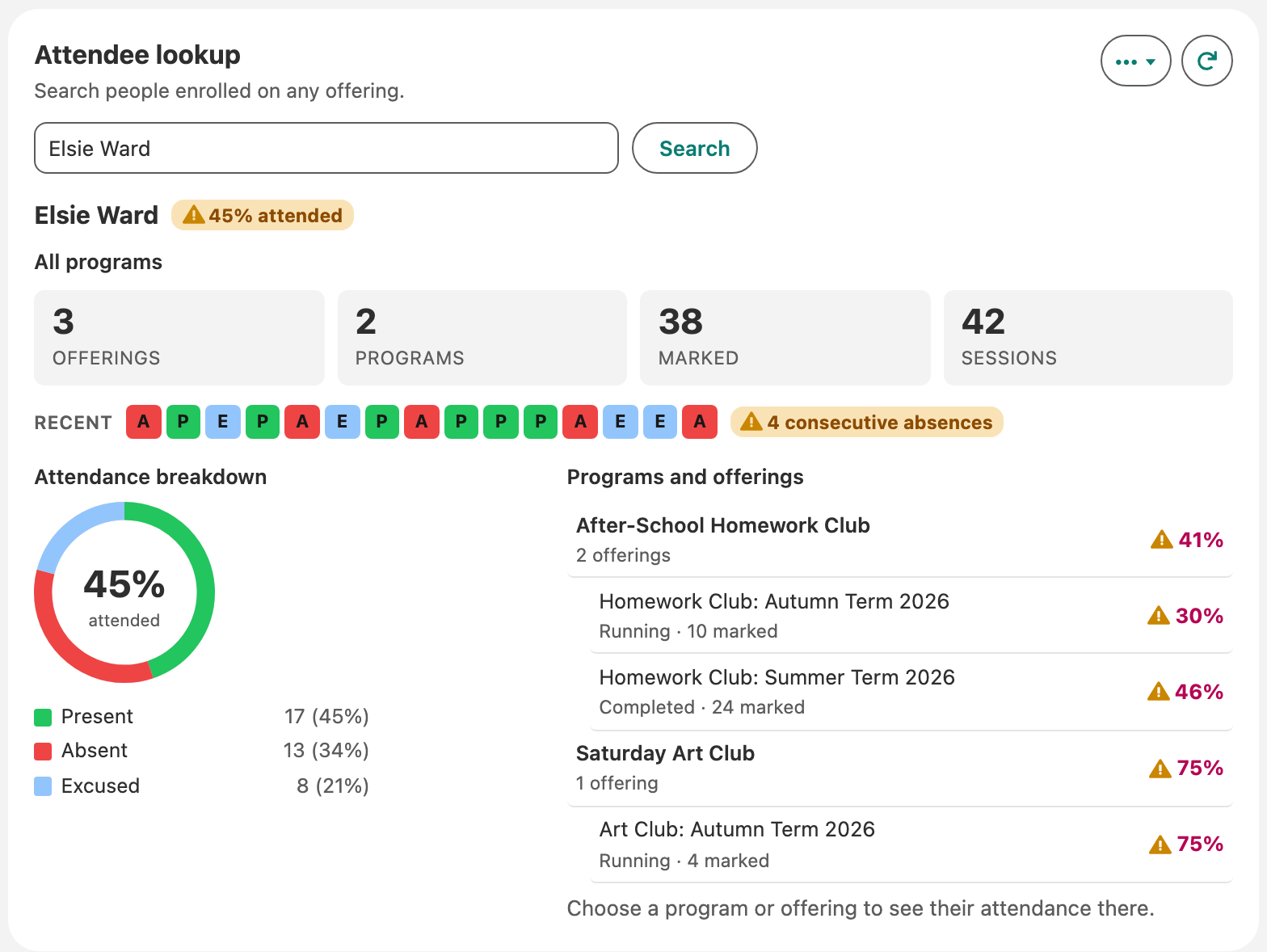
Programs and offerings lists every program the person is in, each with its offerings and the person's attendance rate there. An offering they attended without being enrolled (a walk-in) is listed too, marked not enrolled, and so is one they have since been removed from.
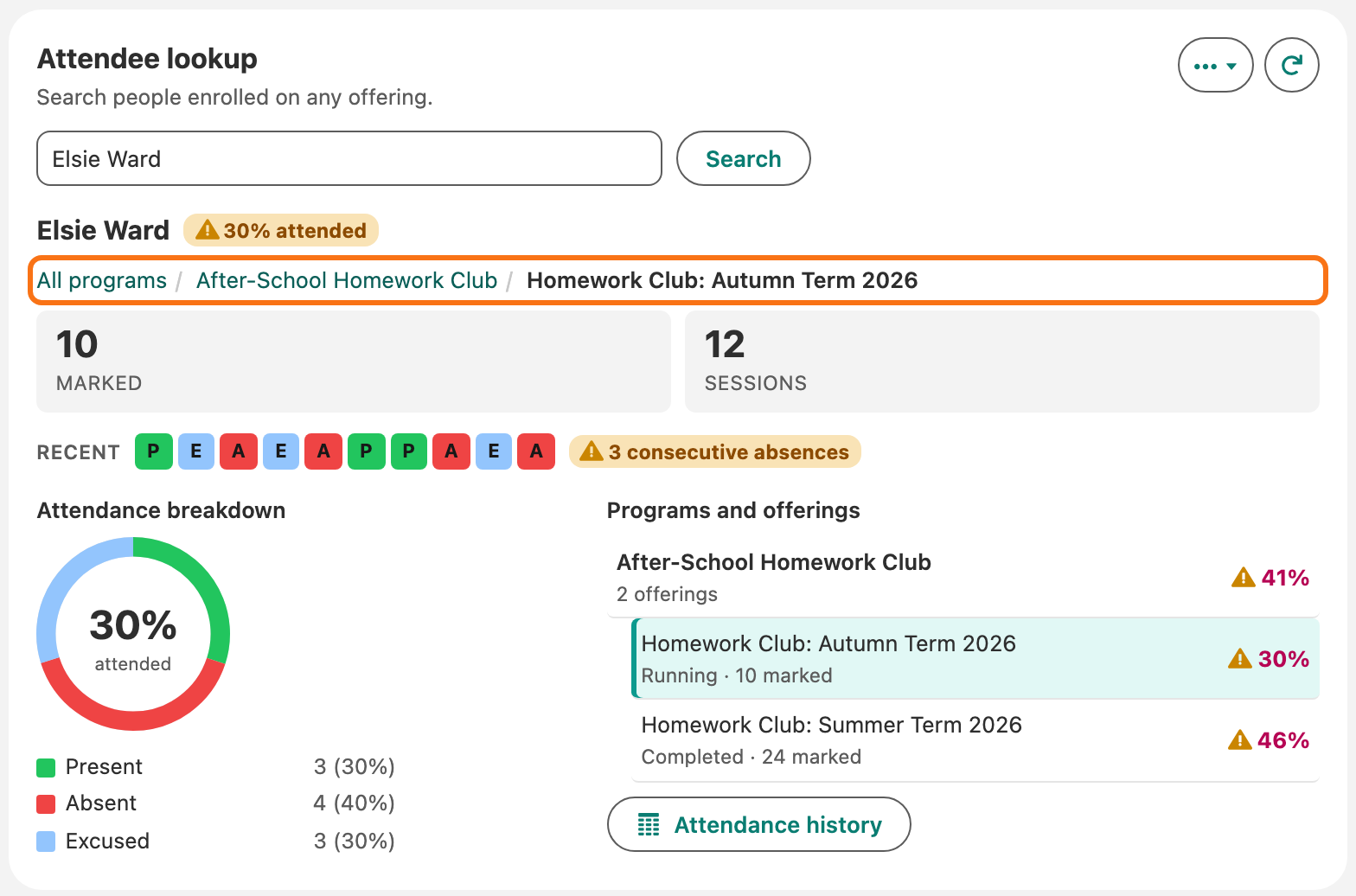
- Click a program to see their figures for that program alone, or an offering for that offering alone. Everything in the lookup follows: the counts, the chart, the recent marks and the run of absences.
- The line above the figures shows where you are, such as All programs / Year 7 Maths / Maths - Cohort A. Click All programs or the program to go back up.
- With an offering chosen, Attendance history opens that offering's attendance history, where the person has a mark for each session that has started or been closed. It opens on the latest 12 sessions (6 on a phone).
Panels on the right
- Coming up: open sessions from now on, with how many people are expected (or how many are marked, once marking starts). Click one to open its sheet.
- Finish marking: past sessions that are still open. Mark them and close them.
- Needs attention: offerings below your attendance target, worst first.
Each panel shows up to six items, from Planned and Running offerings only. A panel with nothing to show is hidden, except that with My sessions on, Coming up and Finish marking stay and say there is nothing for you.
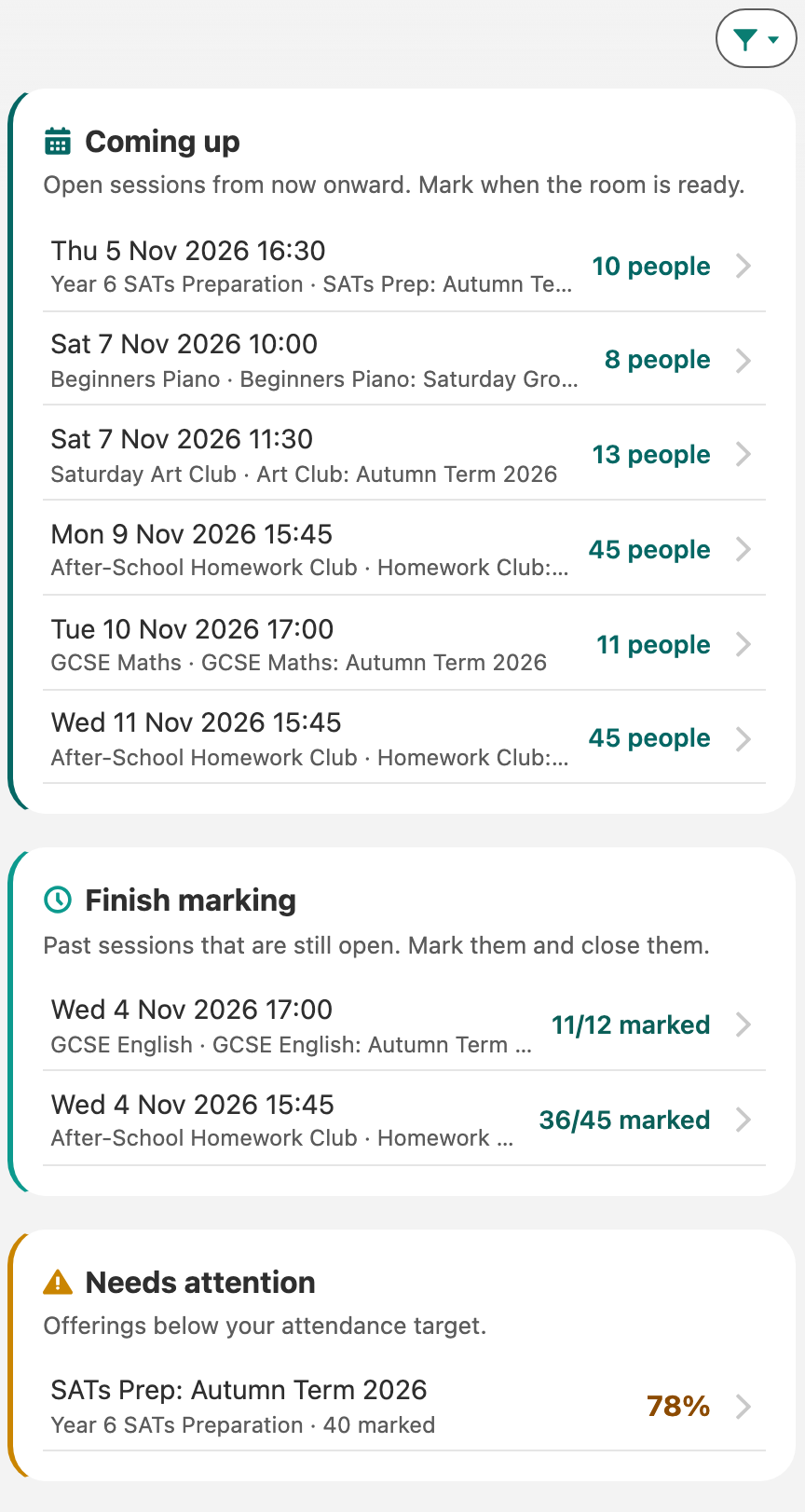
If you are the Instructor of an offering, My sessions above the panels keeps Coming up and Finish marking to the offerings you run (Planned or Running ones). It is on until you choose All sessions, which shows everyone's. Your choice is saved for you. People who aren't an instructor of any offering always see all sessions.
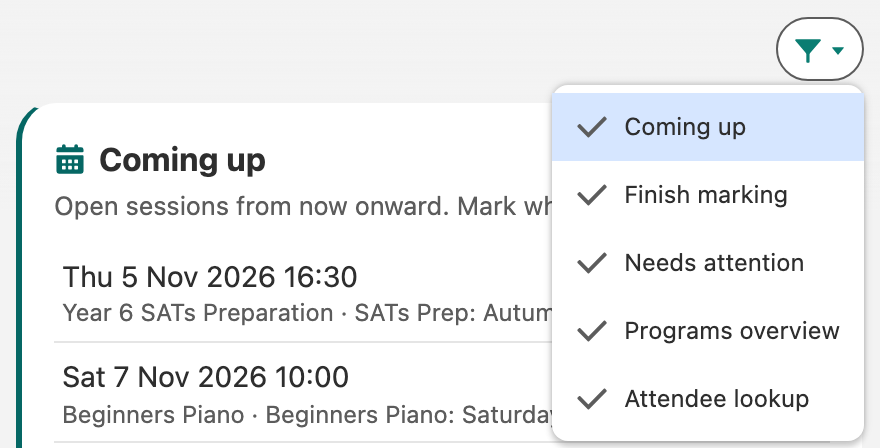
Use the filter button above the panels to show or hide any panel, the Programs overview and Attendee lookup included. Your choice is saved for you.
Configure
Admins see a Configure button at the top. See Configure Presently.
Support

Getting started guide at the top of the page opens this help site in a new tab. Below it, the support email link opens an email to support@turbotres.io with your Presently version in the subject. The terms of use, privacy policy and version are at the bottom of the page.