
Appearance
Taking attendance
Each session has an attendance sheet. Open it from the offering (Create next session), from the Sessions tab, or from the Coming up and Finish marking panels on Home.
The sheet is built for a tablet at the door, and works just as well on a computer. It needs an internet connection: there is no offline mode.
The heading
The band at the top shows the offering and program (click either to open it), how many people are on the session, and whether it is Open or Closed. On the right are Add walk-in (while the session is open), Close session (or Reopen session) and the ... display options.
The buttons follow your permission set: what you can't use is hidden or locked. Someone who can see a session but not mark it, such as a Presently Viewer, sees View only beside Open, with the codes and reasons read-only (see Permission sets).

Marking people
Each person has a row with their name, a code button, a code list and a Reason box.
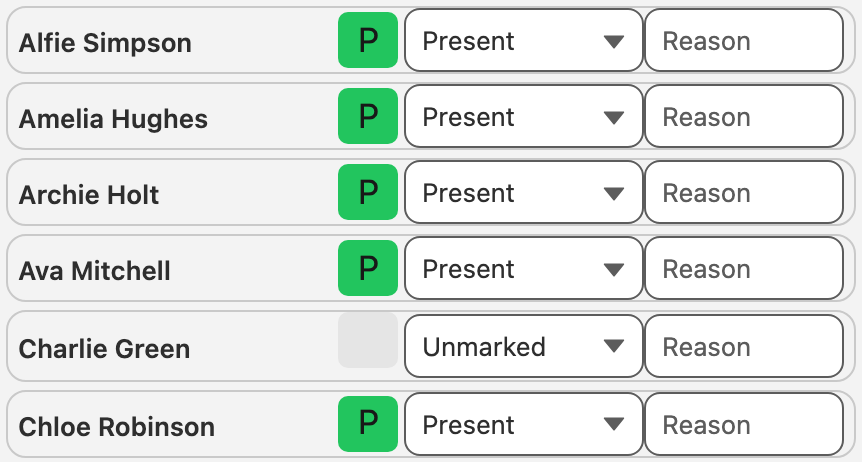
- Tap the code button to step to the next code (for example P, then A, then L). On a computer, right-click steps back.
- Or pick from the list next to it to choose a code directly.
- Reason is optional. Type a reason, such as Sick, or pick a suggestion.
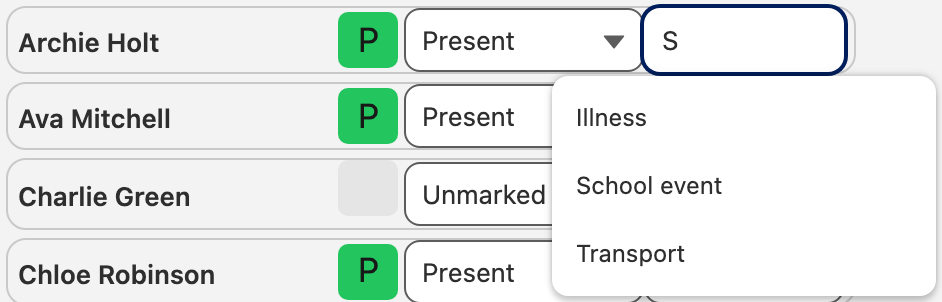
Marks save automatically as you go. If a save fails, the row goes back to what was saved and you see a message, so the sheet never shows a mark that wasn't recorded.
The chips above the sheet count how many people have each code, and how many are still unmarked.
Marking everyone at once
Pick a code in the Code box above the sheet (it lists the short codes, such as P), then:
- Apply to page marks everyone on the current page.
- Apply to all marks everyone on the session.
Applying a code replaces any marks already made. Choose Unmarked to clear marks.

A common way to work: apply Present to all, then change the few who are absent or late.
Walk-ins
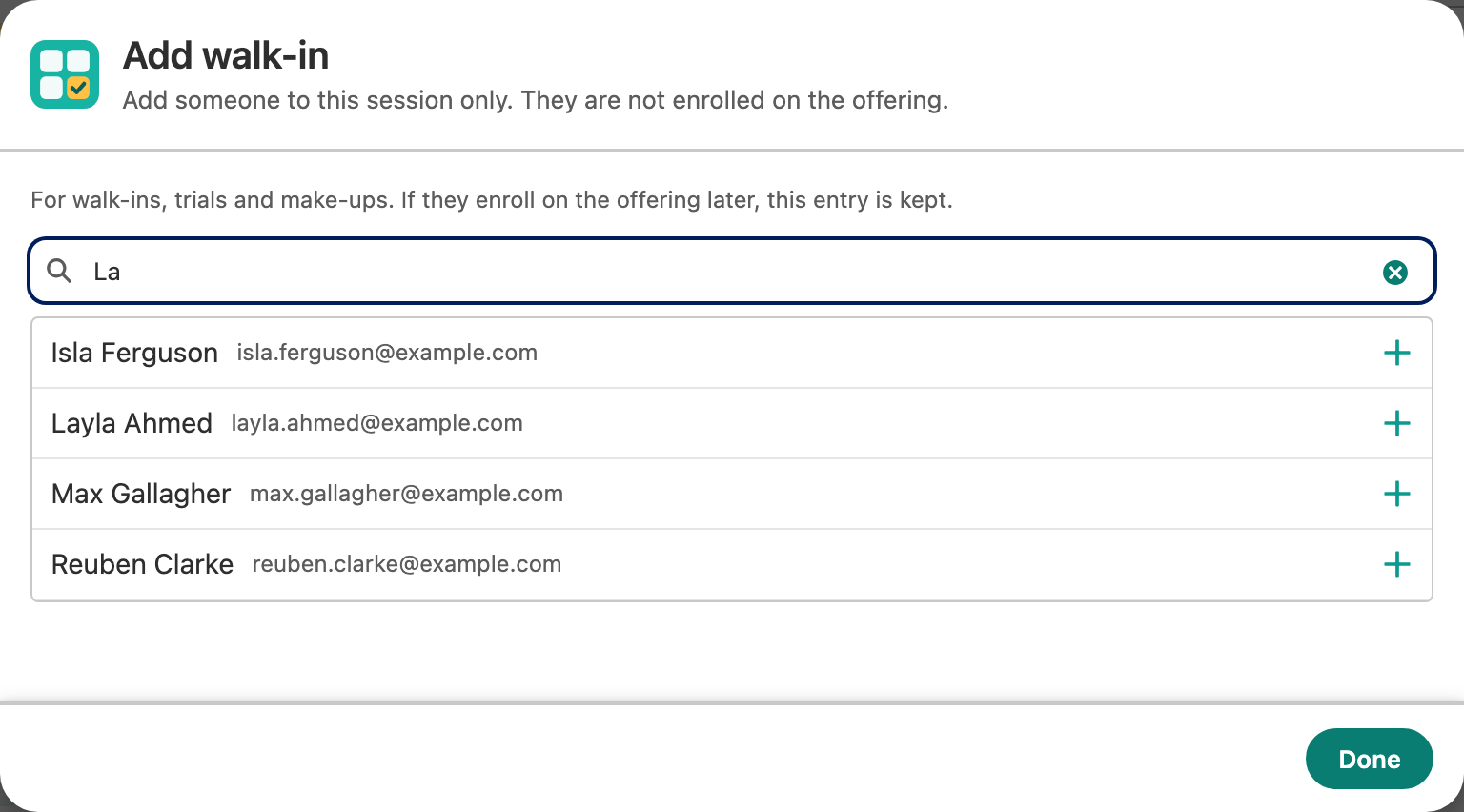
Someone came who isn't enrolled, such as a trial or a make-up class? Click Add walk-in, find them and add them. If they aren't in Salesforce yet, add them on the Contacts tab first. They are added to this session only and tagged walk-in. If they enroll later, this entry is kept.
Closing a session
When marking is finished, click Close session. Its marks become read-only. Presently asks first.
Only a Program Owner or Admin can Reopen session to change marks. Reopening also asks first.

Display options
Click ... in the heading to adjust the sheet for your screen. Your choices are saved for you, per program.

| Option | What it does |
|---|---|
| Columns | Show the roster in one or more columns, with or without History. |
| History | Show each person's recent marks from earlier sessions between their name and today's mark, oldest first. |
| Rows / page | How many rows each column shows per page. |
| Name format | "First Last", "Last, First", "First name" or "Last name". |
| Name width, Code width, Code font size, Meaning width, Reason width | Sizes of each part of the row. |
| Reset sizes | Puts the sizes back to their defaults. |
On a phone, the sheet always uses one column.
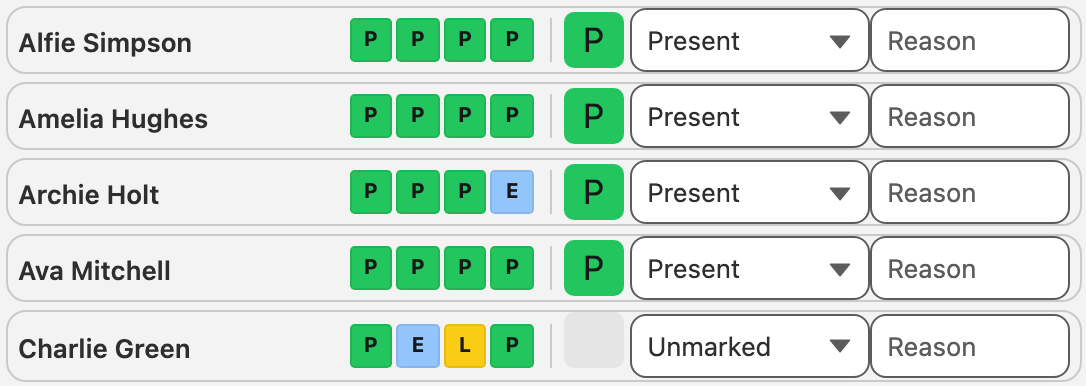
If names or history get cut off because there isn't room for every column, the display options say so. Choose fewer columns or less history, or narrow some of the sizes.
Limits
- A session sheet shows up to 1,000 people. If a session has more, the first 1,000 by name are shown, with a warning.
- Session times are in your org's time zone. People in other time zones see the same moment in their own time.