
Appearance
Attendance history
Attendance history is a grid of everyone on an offering against its sessions, with each person's attendance rate. It is read-only: to change a mark, go to that session's sheet.
Opening it
- On an offering, click Attendance history.
- Or open the Attendance History tab. It opens on the offering you last looked at there; choose another with Program and Offering.
Reading the grid
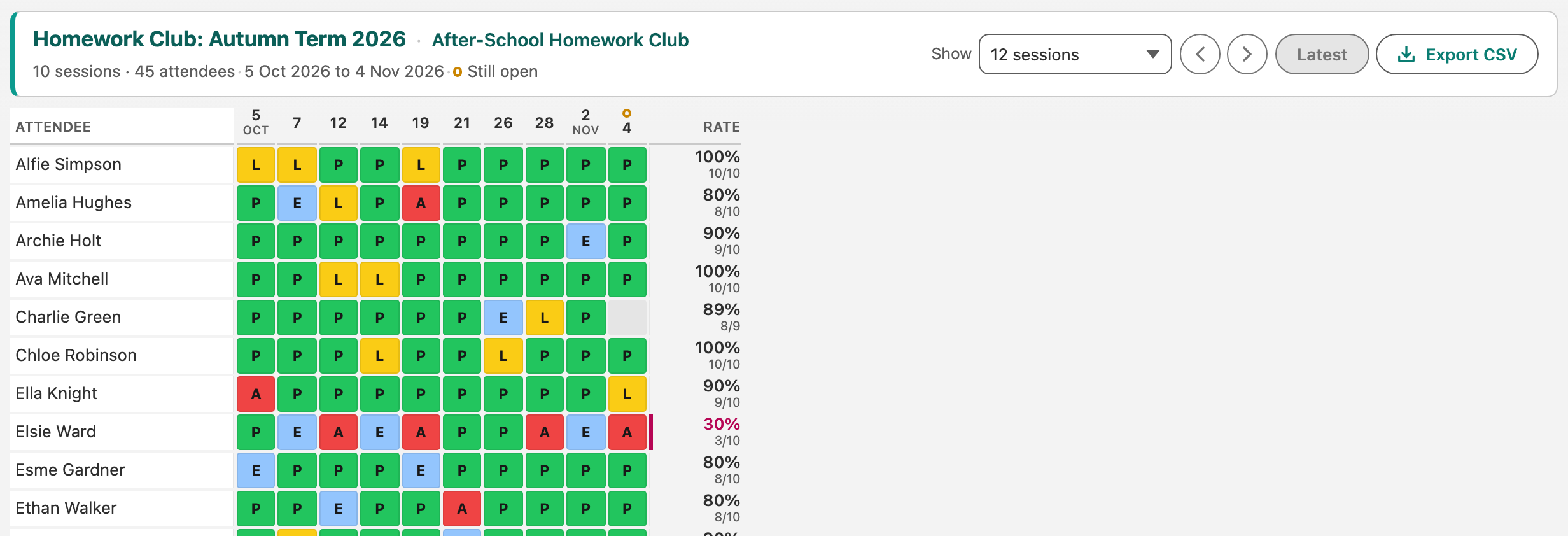
- Each row is a person, each column a session that has started or been closed (newest on the right). A session still to come joins the grid once it starts, or as soon as it is closed.
- A ring above a date marks a session that has started but is still open. Its marks can still change, and its grey cells are people nobody has marked yet. Still open under the heading is the key. Close the session from its sheet when marking is done.
- A coloured cell with a letter is a mark, in the code's colour.
- A grey cell is a session where the person is on the sheet but not marked yet.
- A dot means the person has no row for that session, for example because they joined later.
- Rate on the right is the person's attendance rate across the whole offering, with attended and marked counts underneath. A rate below your target is shown in red with a bar. A person with too few marks shows n/a, and so does everyone until an admin chooses which categories count as attended.
- Tags beside a name: walk-in (came without being enrolled) and unenrolled (was enrolled and has since been removed). They are listed after the people enrolled, when the sessions shown include one of theirs.
Moving around
- Show sets how many sessions are visible: 6, 12, 24 or 36.
- The arrows move to earlier or later sessions. Latest jumps back to the most recent.
- Large rosters show 100 people at a time. The button at the bottom says how many more it will show and how many are still hidden, such as Show 100 more (250 not shown).
- With a keyboard, use the arrow keys to move between cells, and Enter or Space to open a cell.
Looking at one mark
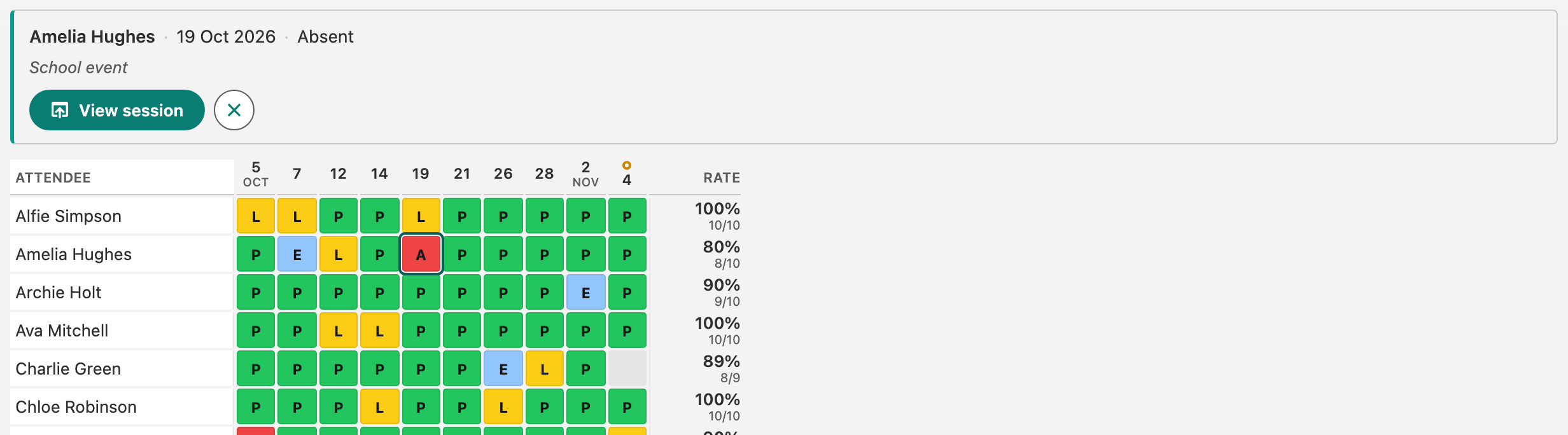
Click a cell. A strip above the grid shows the person, date, code and any reason. The cell is outlined so you can see which one is selected.
- View session opens that session's attendance sheet.
- The X closes the strip.
Exporting
Export CSV downloads the whole attendance history, every session, not only the ones on screen. In the file, an empty cell means not marked yet and a dash (-) means no row for that session. The file opens in Excel and other spreadsheets.