
Appearance
Programs, offerings and rosters
Programs
A program is something you run regularly, such as "Morning Yoga" or "Year 7 Maths".
Create a program: on the Programs tab, click New, give it a name and save. You can add a code and a description.
Retire a program: untick Active on the program. It leaves the Home program list and no new offerings can be added to it, including clones. Its offerings and history stay.
A program can't be deleted while it still has offerings.
Offerings
An offering is one run of a program, such as "Autumn term" or "Tue 6pm group". Each has its own dates, schedule and roster.
Create an offering: on a program, create a new offering, or use New on the Offerings tab. Fill in:
| Field | What it does |
|---|---|
| Offering Name | A name for this run, such as "Autumn 2026". |
| Program | The program it belongs to. |
| Status | Planned, Running, Completed or Archived. |
| Start Date / End Date | When it runs. Sessions can't be created after the end date. |
| Frequency | Daily, Weekly, Every 2 weeks or Ad hoc. Used to suggest the next session's date. |
| Weekday | The day it meets, for Weekly and Every 2 weeks. |
| Default Time | The usual start time, in your org's time zone. |
| Instructor | Who leads it (a Salesforce user). Their Home shows its sessions under My sessions. |
| Max Capacity | Optional. Presently warns when the roster goes over it. |
Offering statuses
- Planned and Running: in use.
- Completed: finished, kept for reporting.
- Archived: closed. Nobody can be enrolled and no sessions can be added. Someone who can edit the offering can change the status back if they need to.
Only Planned and Running offerings appear in the Home panels (Coming up, Finish marking, Needs attention) and under My sessions.
On an offering's page
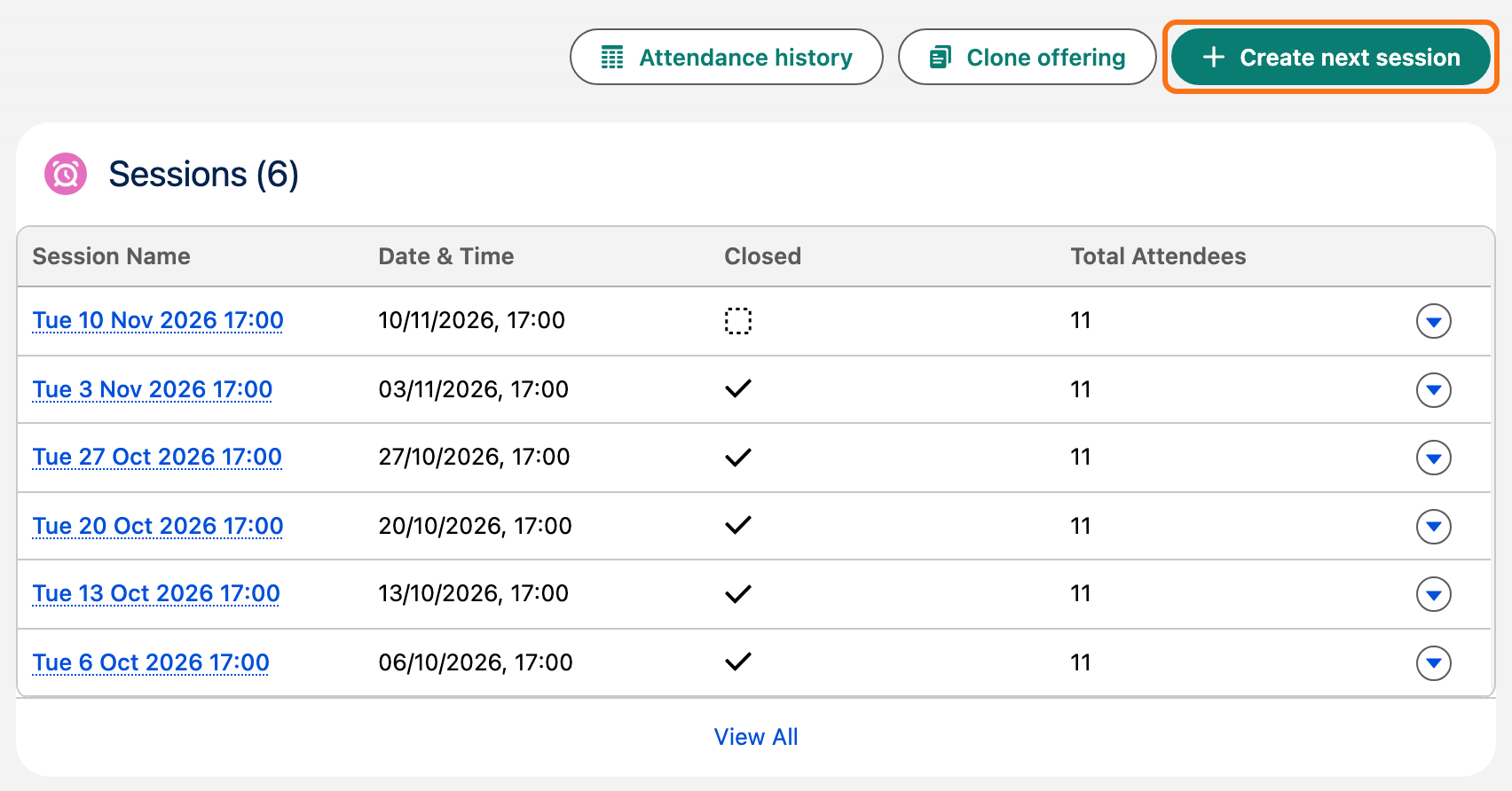
The buttons above the Sessions list run the offering: Attendance history, Clone offering and, rightmost, Create next session. Right below them is the Sessions list, then the Enrollments card. To add a session, use Create next session: the Sessions list has no New button of its own.
Deleting an offering
An offering with marked attendance can't be deleted, so your history is safe. Set it to Archived instead. An offering with no marks deletes normally.
Rosters (enrollments)
The Enrollments card on an offering, below its sessions, lists who is enrolled.
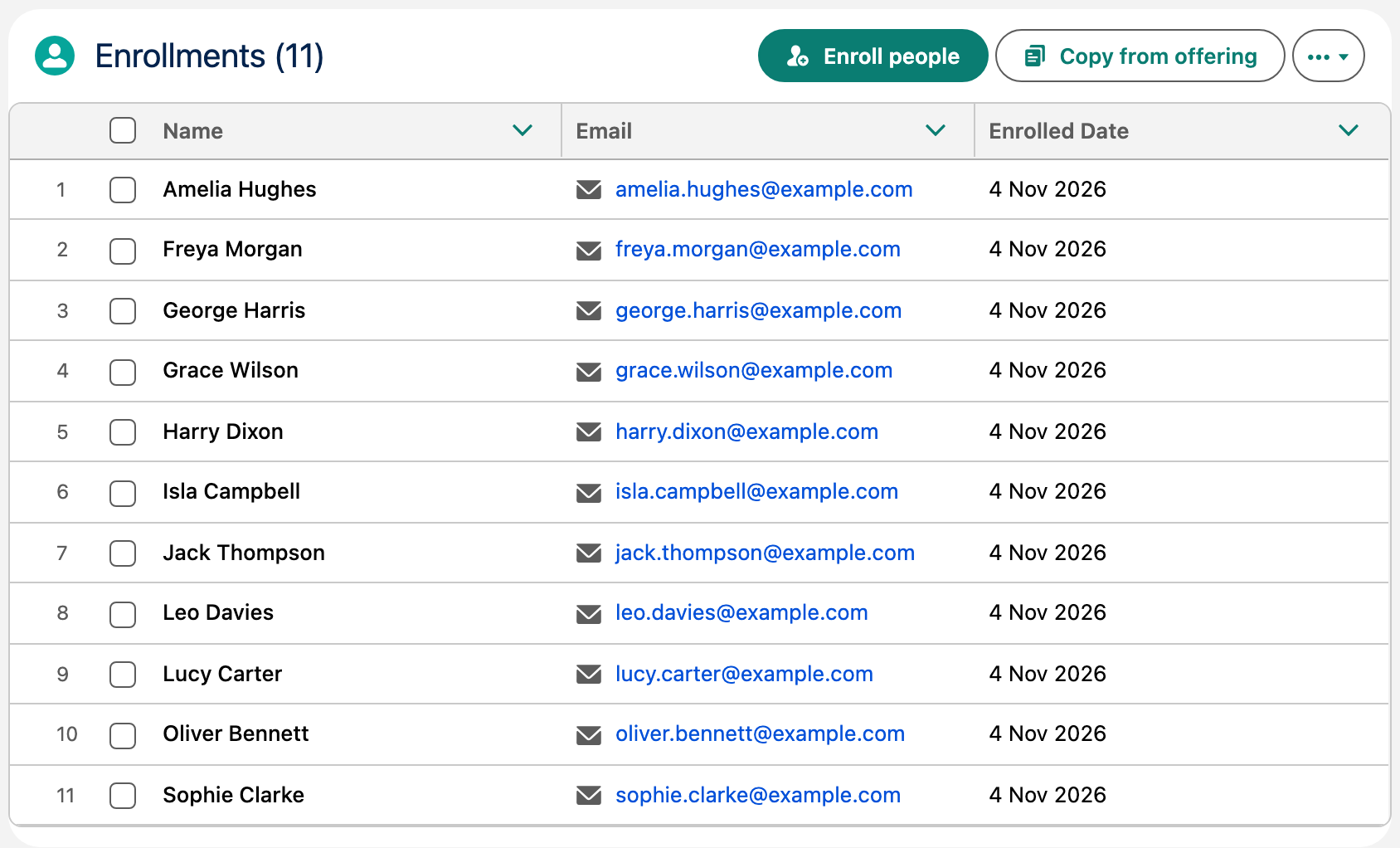
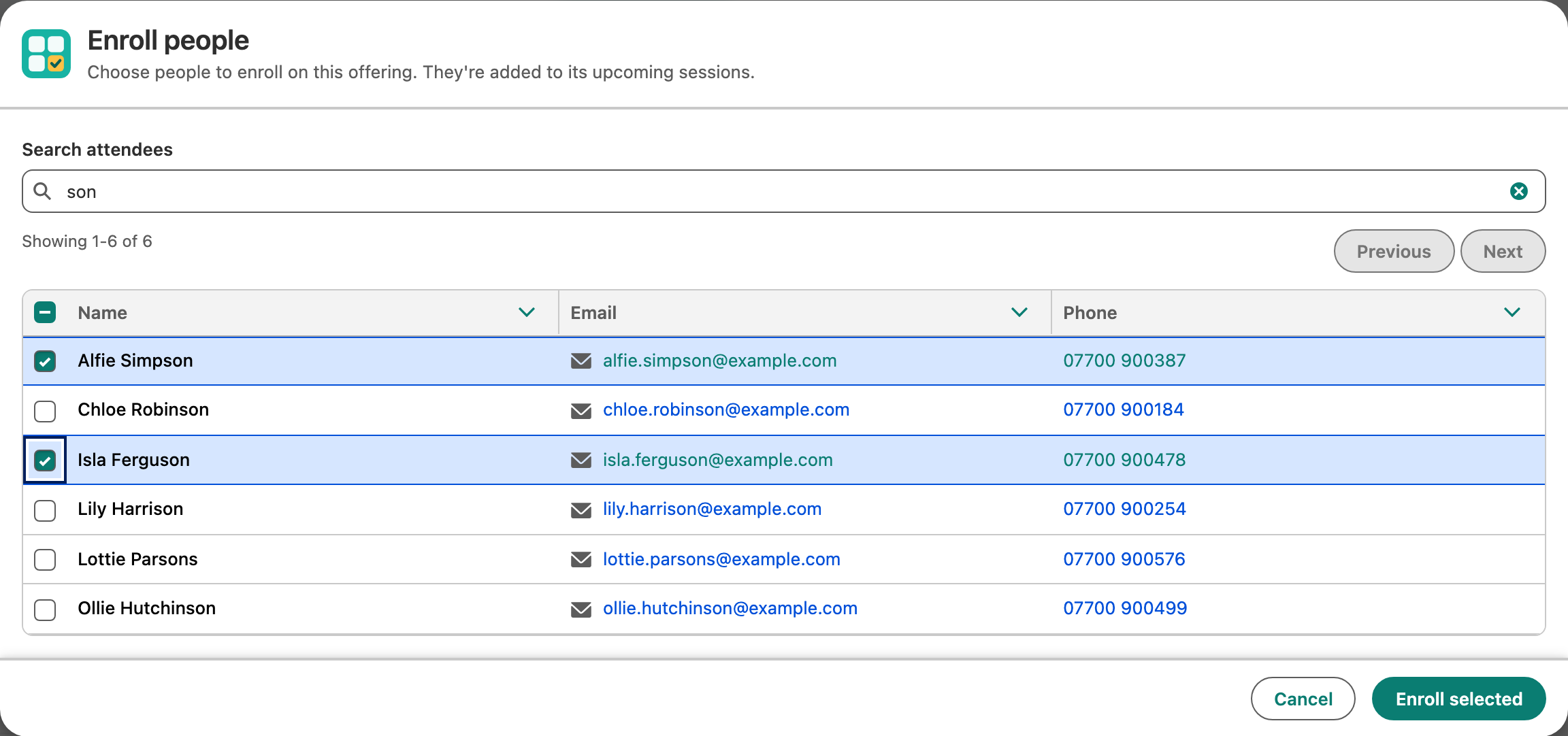
- Enroll people: search for Contacts, tick the people to add, then Enroll selected. If someone isn't there yet, add them on the Contacts tab first.
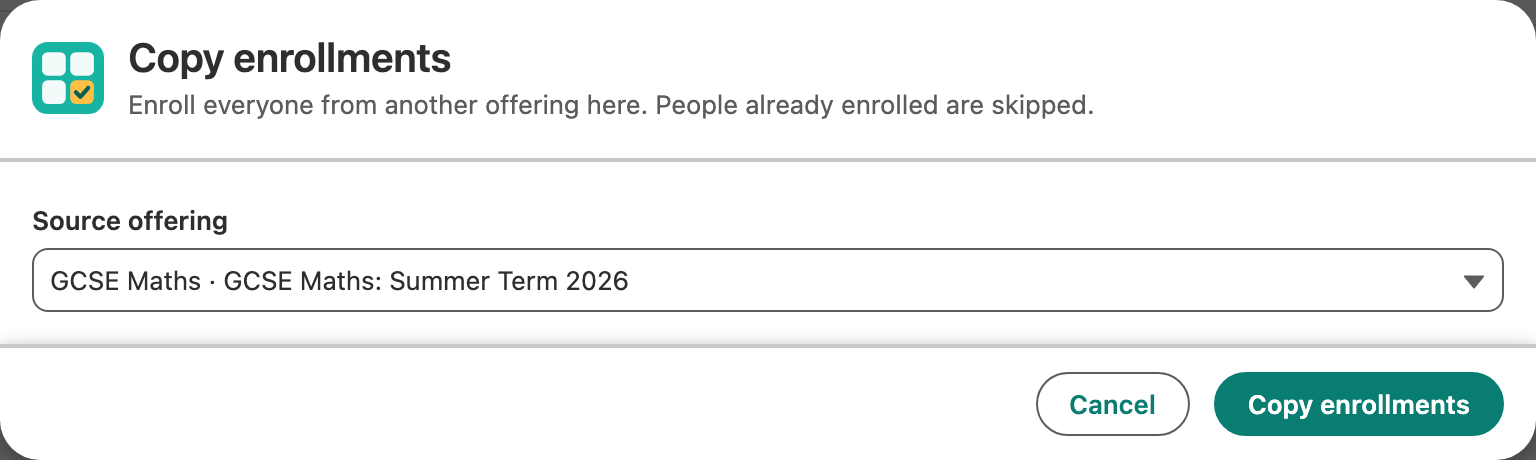
- Copy from offering: copy the roster of another offering. People already enrolled are skipped, and Presently tells you how many were added and how many were already there. People whose contact record you can't open are left out too, and Presently says how many.
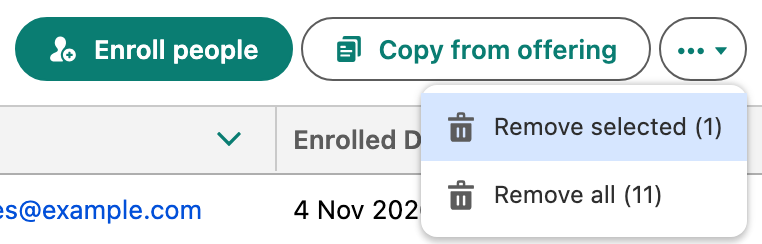
- Remove selected and Remove all are in the ... menu. Tick people in the list first to remove just them. Presently asks before removing anyone.
What enrolling does:
- A newly enrolled person is added to every future, open session of the offering.
- Removing someone takes them off future open sessions where they have no mark. Their marked and past attendance is kept, and they are tagged unenrolled in the attendance history.
- If someone came as a walk-in and later enrolls, their walk-in entries stay as they were. If they had already been added as a walk-in to a session that hasn't happened yet, that entry is linked to the enrollment rather than duplicated.
For very large rosters, one action can change up to about 10,000 attendance rows (people times future open sessions, for example 200 people and 50 sessions). Above that, Presently stops with a message: enroll in smaller groups, or create future sessions after enrolling.
Clone an offering
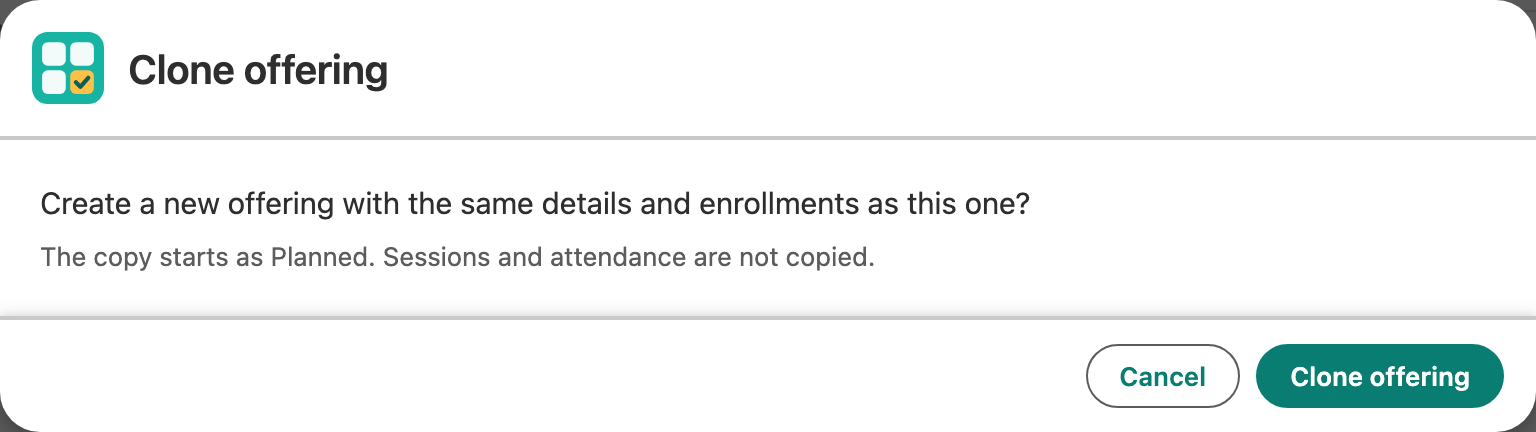
Clone offering on an offering creates a copy for the next run: same program, dates, schedule, instructor and capacity, with the same roster enrolled. The copy starts as Planned. Change its name and dates, then start creating sessions. If the roster includes people whose contact record you can't open, they are left off the copy and Presently tells you how many.
Create sessions
Create next session on an offering suggests the next date and time from the offering's schedule. You can change it before saving.
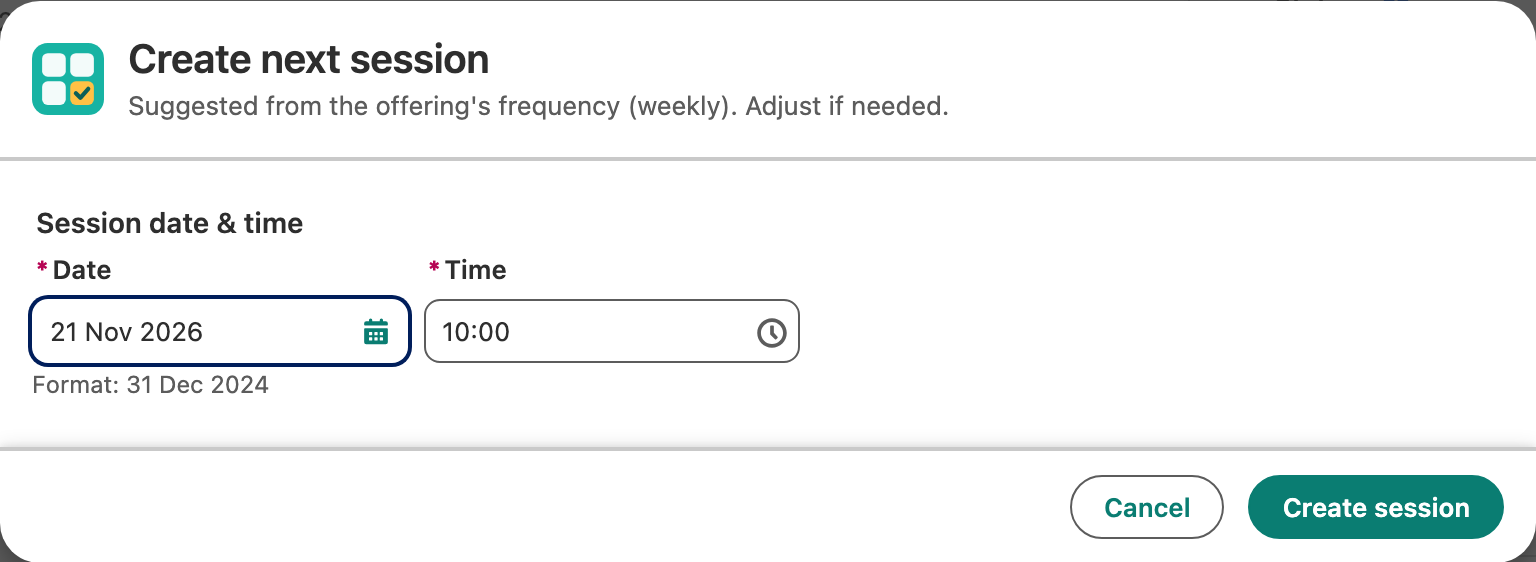
- If the date is in the past, Presently warns you and offers Jump to next upcoming.
- Sessions can't be created after the offering's end date, or at the same date and time as another session of the same offering.
- Everyone enrolled is added to the new session automatically, and its attendance sheet opens.
View attendance history
Attendance history opens the offering's attendee-by-session grid. See Attendance history.